
7. Step 5: Link translations with Multilingual Associations
Go to Components → Multilingual Associations, choose the item type (Articles) and the reference language (English). The Not Associated column lists each language that is still missing a translation.
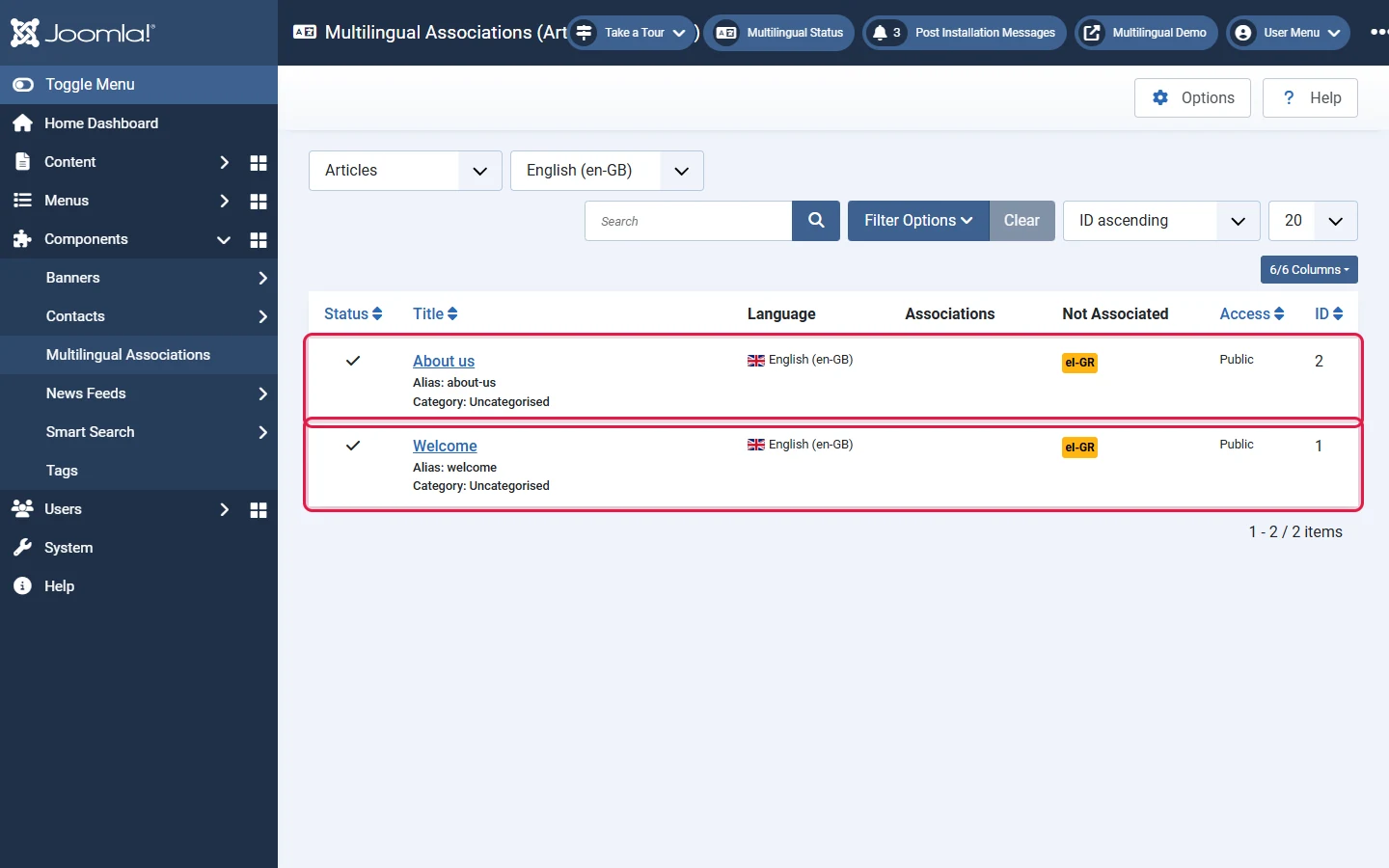
Click the el-GR badge in the Not Associated column. Joomla opens a side-by-side editor: the English reference on the left, an empty Greek article on the right.
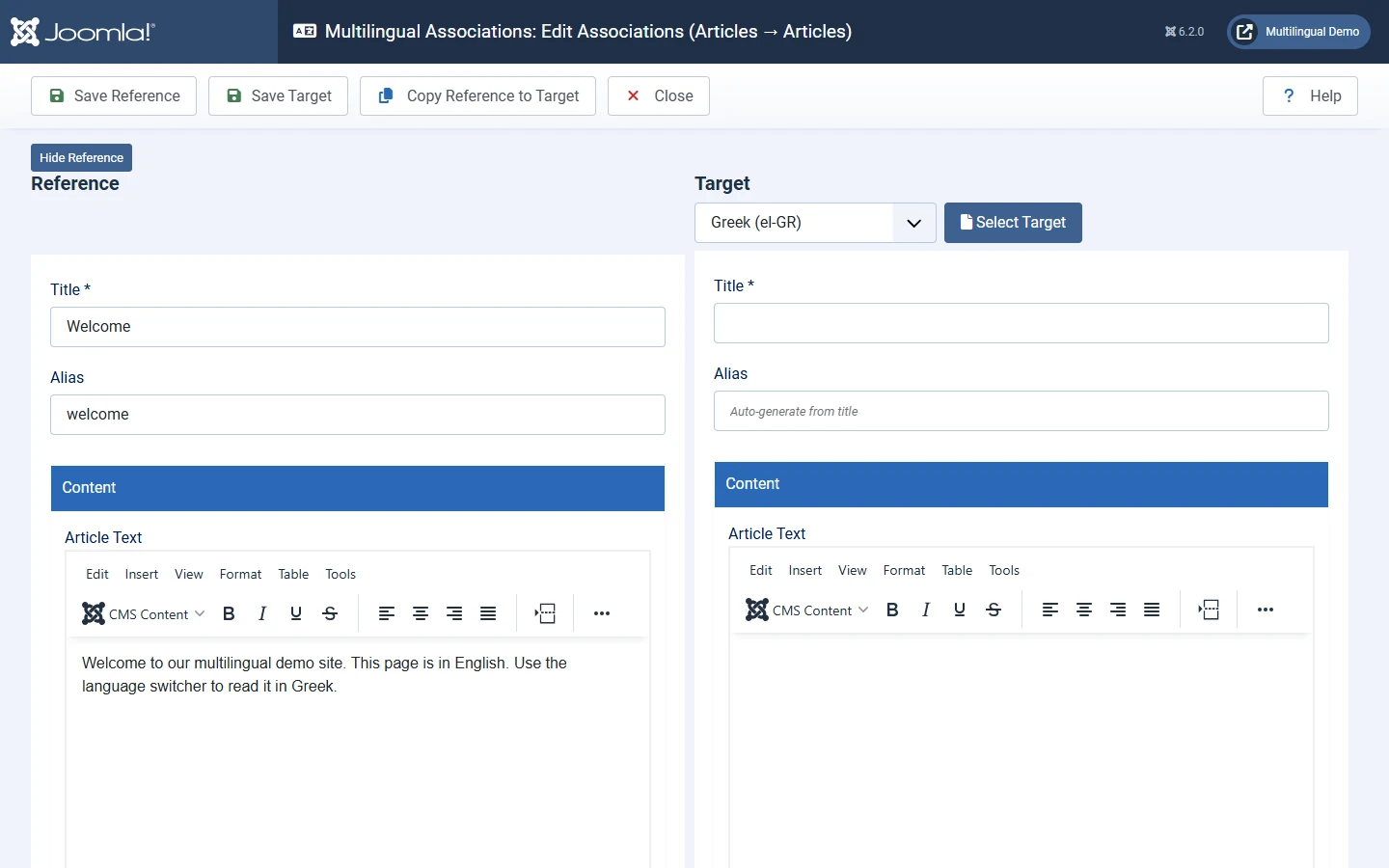
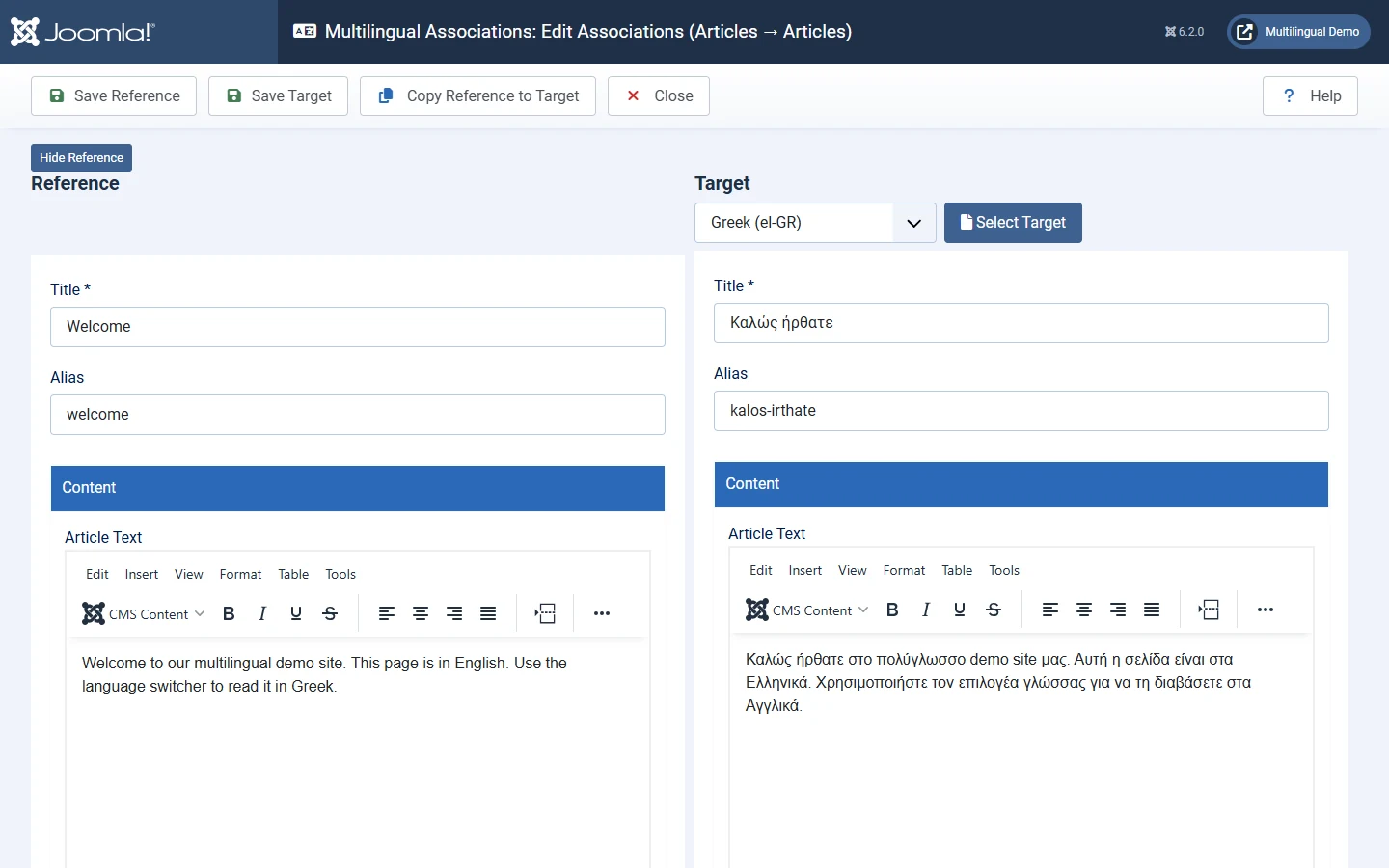
Type the translated title, alias and text in the target, then click Save Target. The new Greek article is saved with the right language and linked to the English one.
Copy Reference to Target is handy for long articles, but it immediately saves a copy of the English article as a new Greek article (named like "Welcome (2)") and it is unpublished. Always rename it, translate it and publish it, or you will end up with stray untranslated copies.
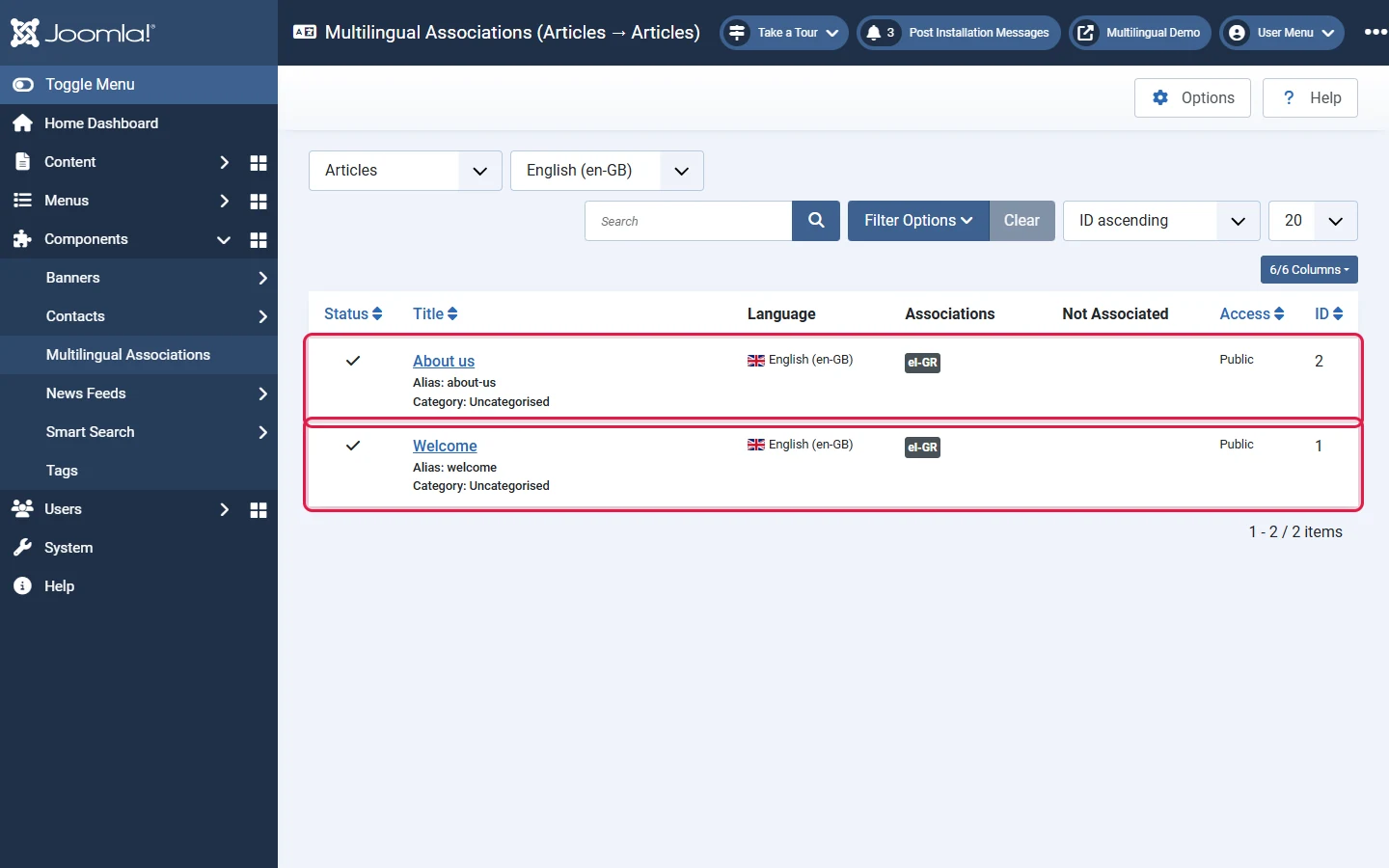
Back in the list, both articles now show el-GR under Associations:
The same component handles categories, contacts, menu items, modules and news feeds. You can also link translations from an item's own Associations tab, which is what we do for menu items in step 7.