
Joomla can run a multilingual website without a single extension. Language packs, content languages, translated menus, a language switcher, linked translations and hreflang tags for search engines are all part of core. What trips people up is not a missing feature but the order of the steps and a few settings that are easy to miss.
This guide builds a real English and Greek site on a clean Joomla 6.2 installation, step by step. Every screenshot comes from that site, including the small surprises we hit along the way. At the end you will find the features you get, the things to be careful with, and a checklist you can reuse for any language.
1. How multilingual works in Joomla
Joomla's model is simple once you know the parts. Each translation is a separate item (a separate article, menu item or module) tagged with a language, and translations are linked together. Five building blocks make it work:
- Language packs translate Joomla's own interface: buttons, labels, dates, messages. Without the Greek pack, a Greek page would still say "Written by" and "Read more".
- Content languages are the languages your content can be in. Each one has a URL Language Code (the
/en/or/el/prefix), a flag and a status. - The Language Filter plugin switches the site into multilingual mode. It adds the language prefix to URLs and shows visitors only the content, menus and modules of the current language (plus everything set to All).
- Associations link an item to its translations. They let the language switcher jump from
/en/about-usto/el/sxetika-me-emasinstead of the Greek home page, and they produce thehreflangtags. - The Language Switcher module shows the flags or language names to your visitors.
Any item set to language All appears in every language. That is useful for things that never change, such as a login form, but it also means that its text is never translated.
2. Before you start
- Decide the languages and the default one. The default site language is where visitors land when Joomla cannot tell what they prefer.
- Decide the URL codes now. They become part of every URL. Short codes (
en,el,de) are the norm. Changing them later means redirecting every page. - Work on a copy for existing sites. Turning on the Language Filter changes the URLs of an existing site, so test on a staging copy and take a backup first.
- Enable SEF URLs and URL Rewriting in System → Global Configuration so URLs look like
/el/arxikiinstead ofindex.php/el/arxiki.
Just experimenting? On a fresh, empty installation, the Sample Data panel on the Home Dashboard offers Multilingual Sample Data. Once the languages are installed, it builds a working multilingual demo for you. Do not run it on a site with real content.
3. Step 1: Install the language packs
- Go to System → Install → Languages. Joomla loads the list of official translations from the Joomla update server.
- Search for your language, for example Greek, and click Install.
- Repeat for every language your site needs.
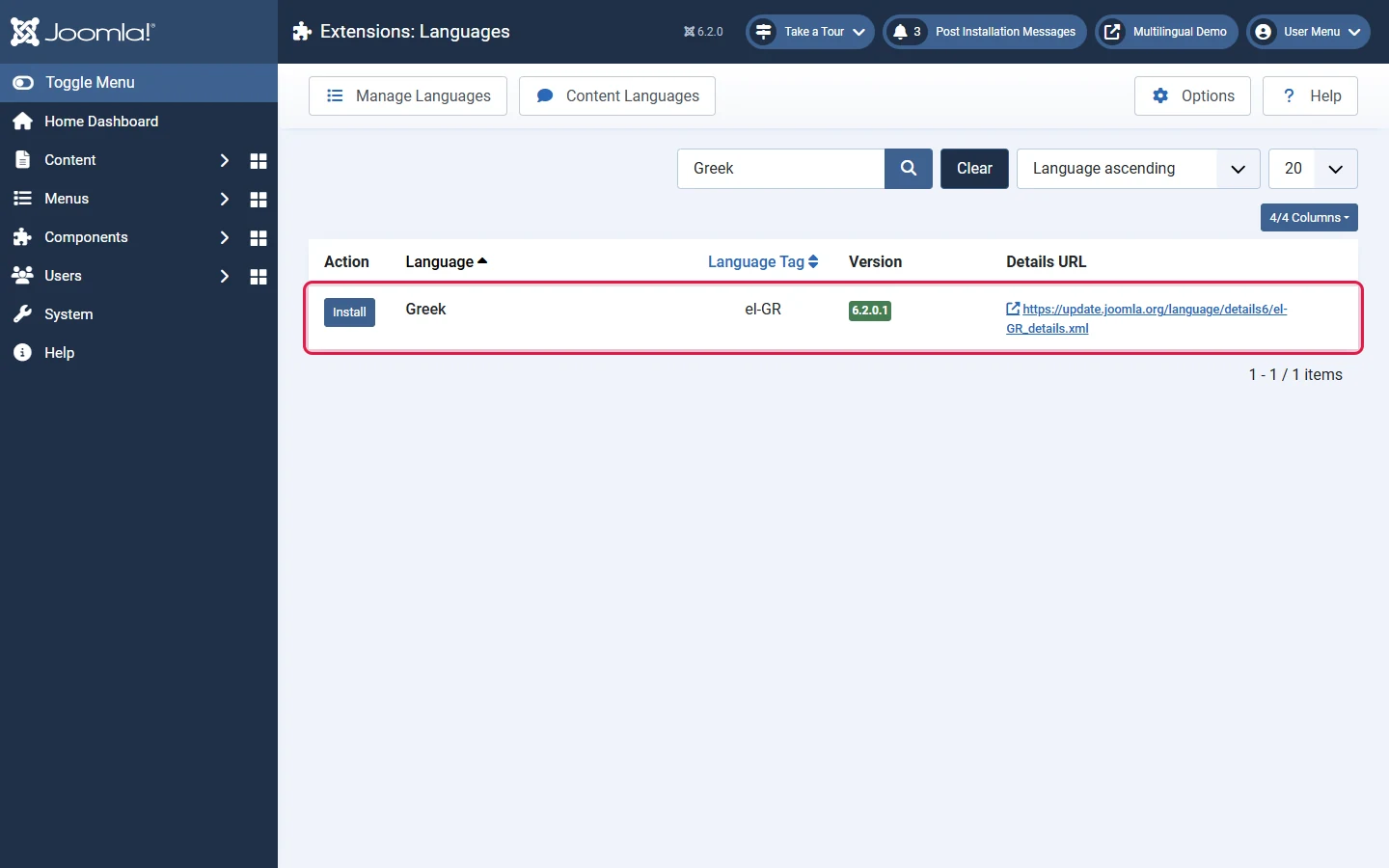
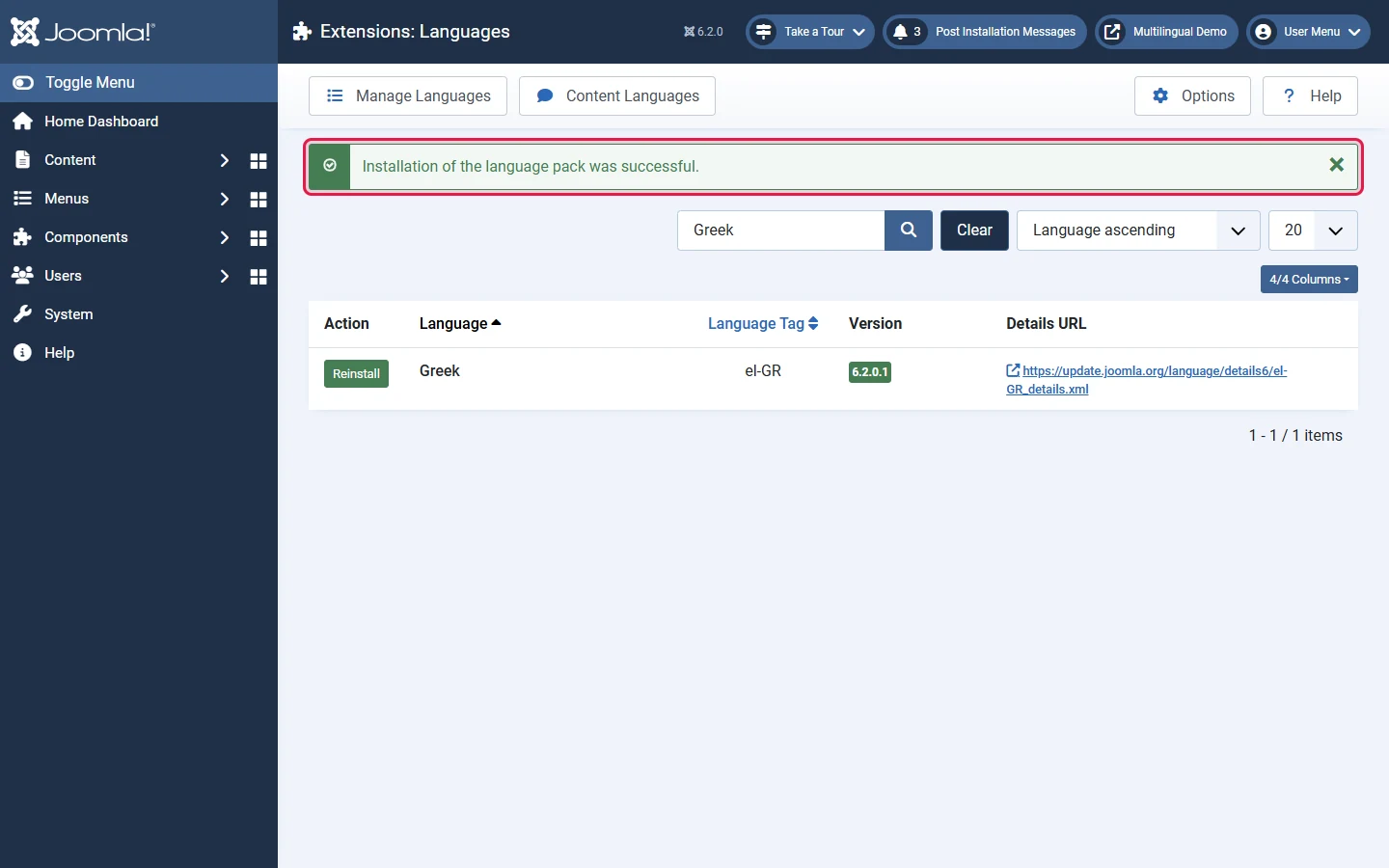
A language pack installs both the site and the administrator translation. Editors can then pick their own admin language in their user profile, which is handy for international teams.
4. Step 2: Check and publish the content languages
Go to System → Content Languages. Joomla creates a content language automatically when you install a pack, but look closely at the status.
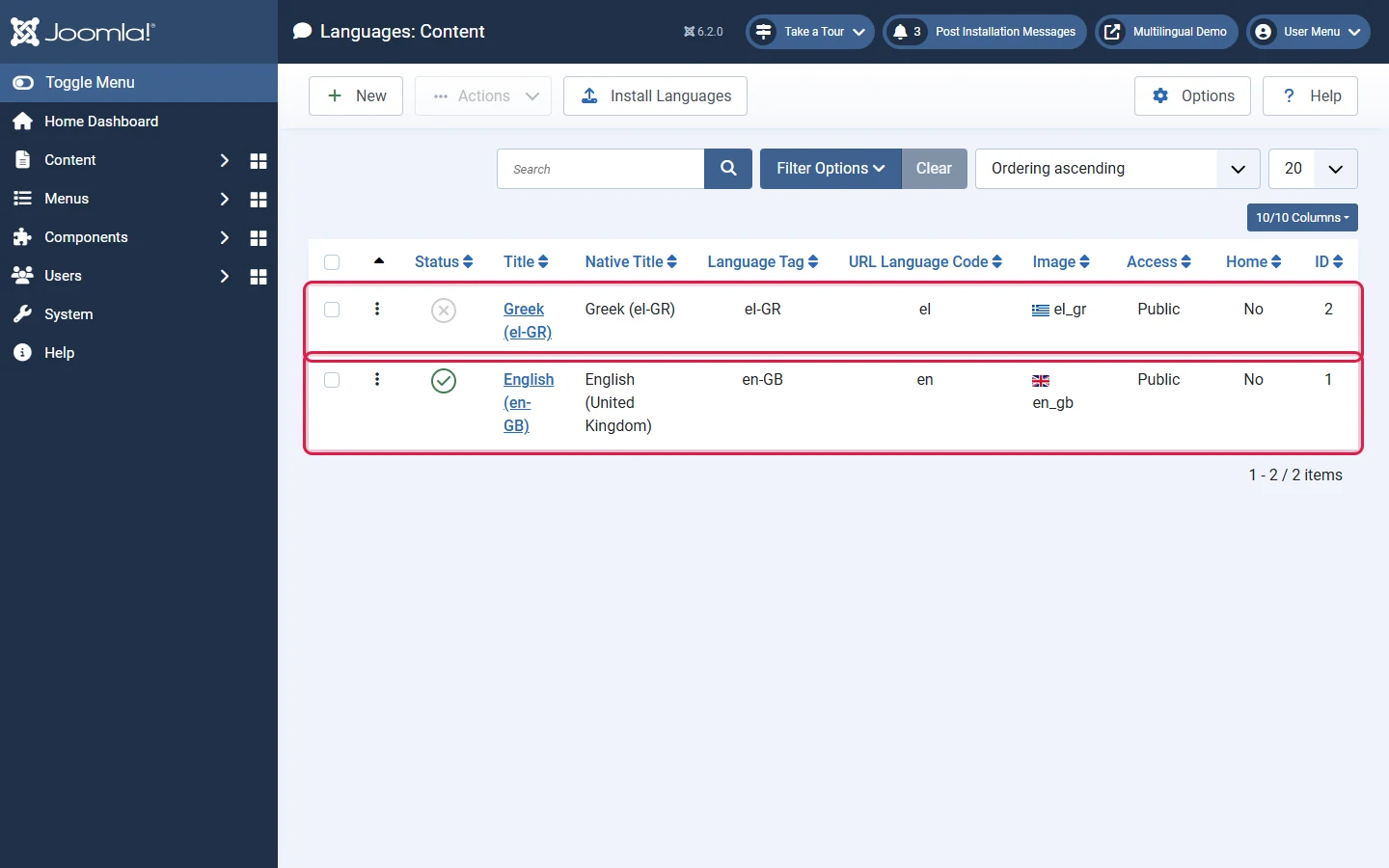
On our Joomla 6.2 test site, the Greek content language was created unpublished. An unpublished content language does not appear in the switcher and its content is not reachable. This is the first thing to check when "the second language does not show up".
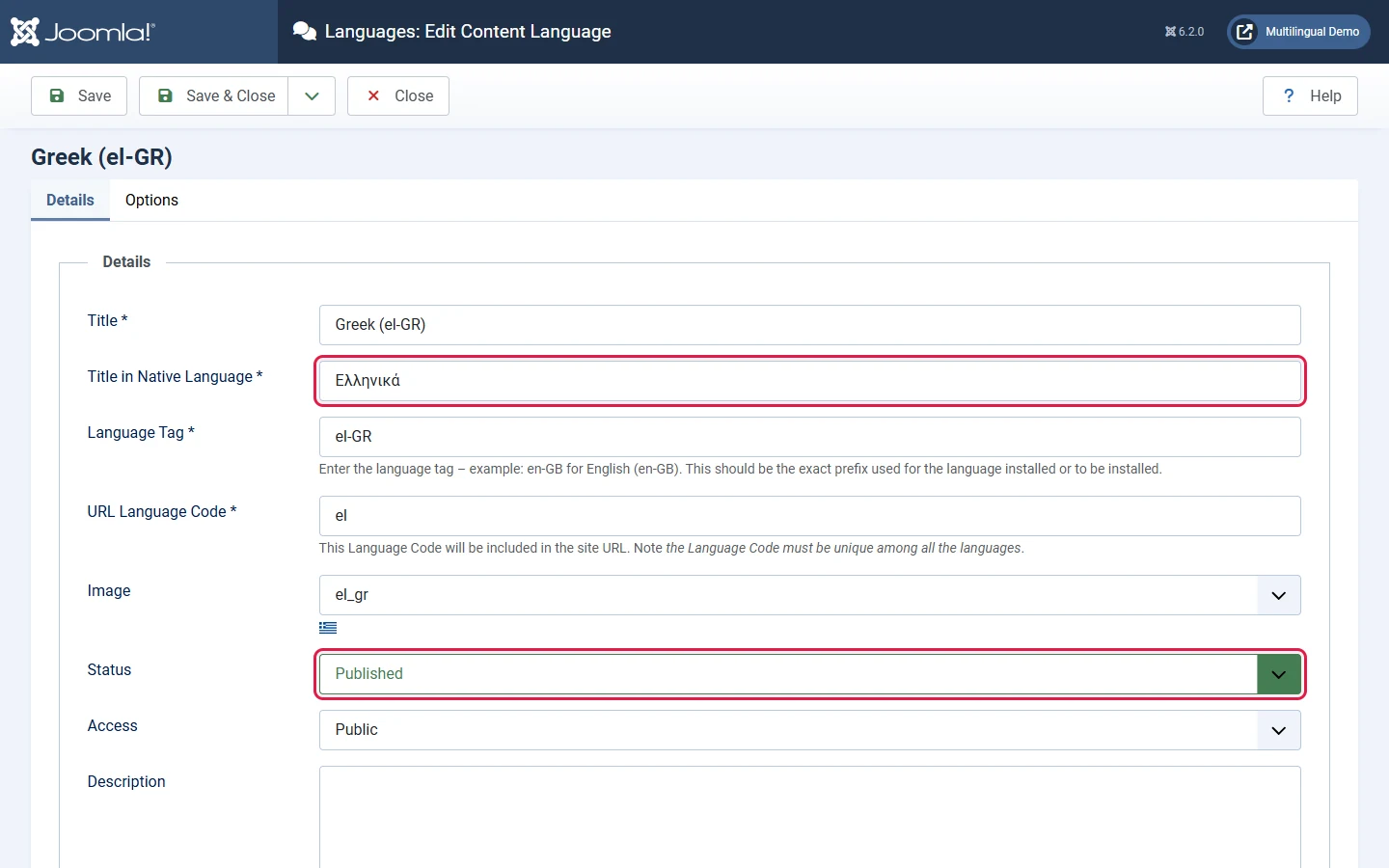
Open the language and review each field:
- Title in Native Language: what the switcher shows when you display language names. Use the language's own name, here Ελληνικά instead of "Greek (el-GR)".
- Language Tag: must match the installed pack exactly (
el-GR). - URL Language Code: the URL prefix. It must be unique across languages.
- Image: the flag used by the switcher.
- Status: set it to Published.
The Options tab lets you set a Custom Site Name and default meta description per language, so the browser title and search snippets are translated too.
5. Step 3: Enable the Language Filter plugin
Go to System → Manage → Plugins and search for language. Two system plugins matter:
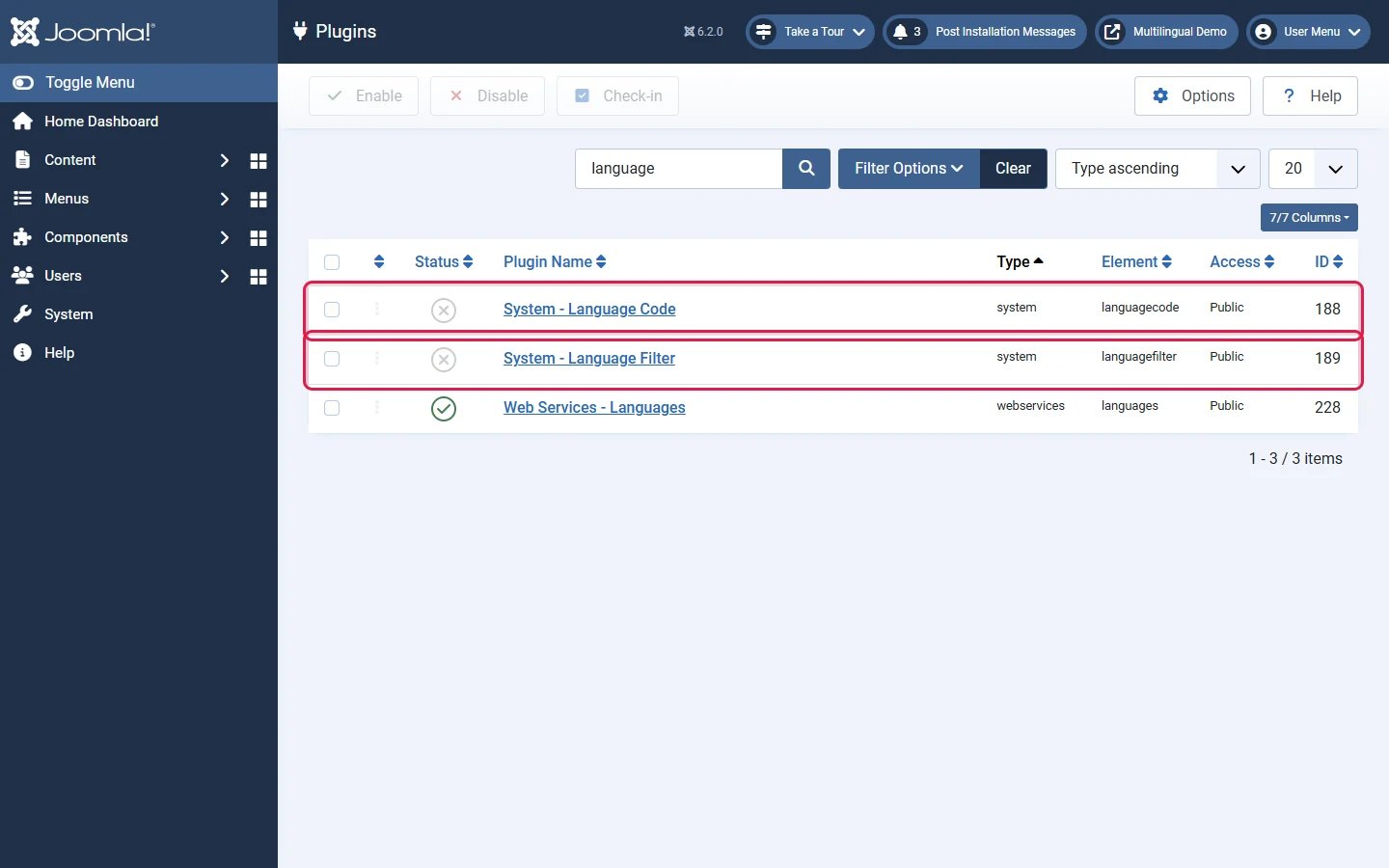
- System - Language Filter is required. It is the switch that makes the site multilingual.
- System - Language Code is optional. It changes the language code Joomla prints in the page's HTML and
hreflangtags, for example fromel-grtoel. Leave it off unless you have a reason.
Open System - Language Filter, set Status to Enabled and review the options:
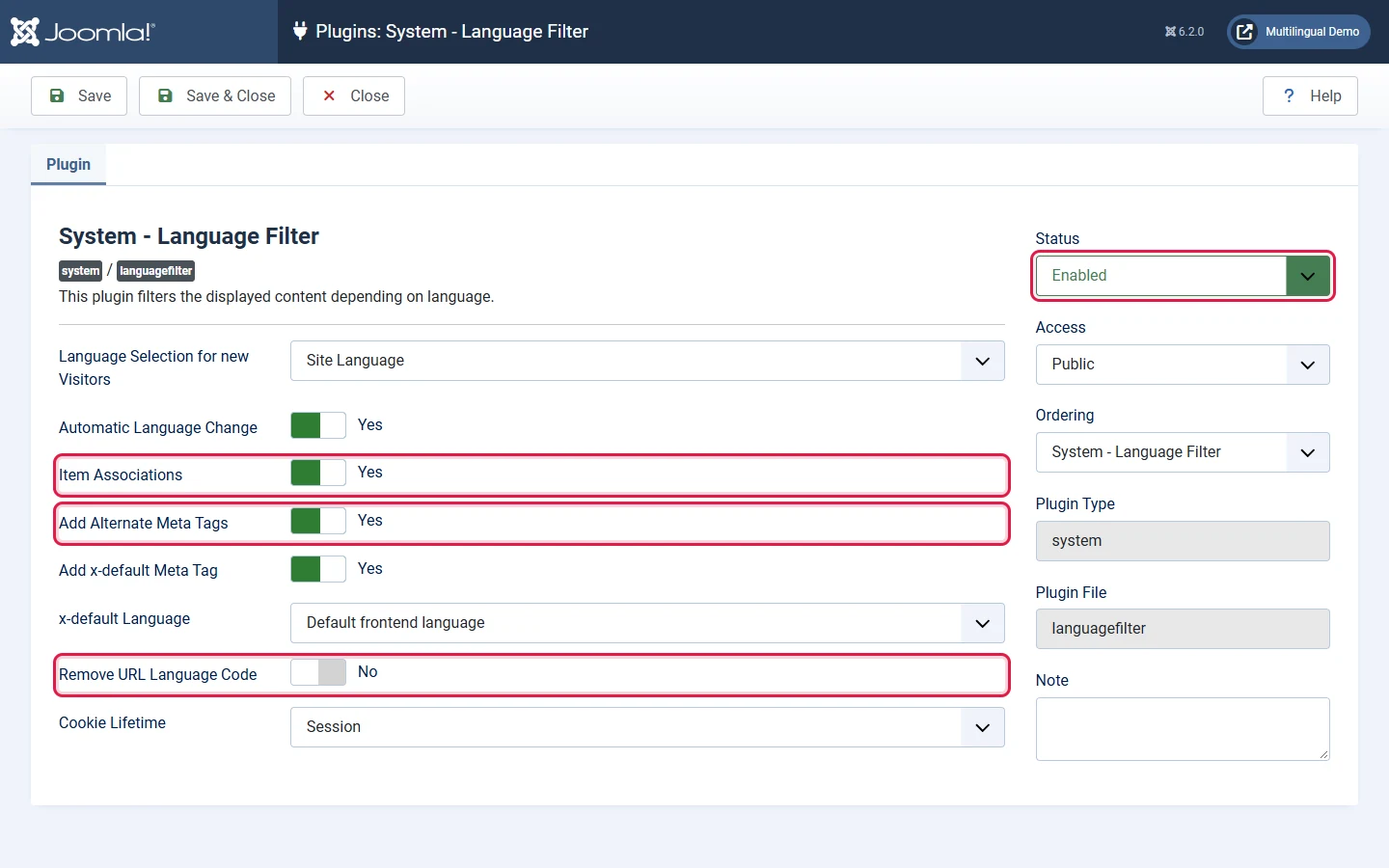
- Language Selection for new Visitors: Site Language sends everyone to the default language. Browser Settings uses the visitor's browser language when you have it.
- Automatic Language Change: when a logged-in user switches language, their account's site language is updated too.
- Item Associations: keep this on. Without it, the switcher always goes to the home page of the other language.
- Add Alternate Meta Tags and Add x-default Meta Tag: output the
hreflanglinks that tell search engines which pages are translations of each other. - Remove URL Language Code: removes the prefix for the default language only (
/about-usinstead of/en/about-us). Decide this before launch. Changing it later changes every URL of that language. - Cookie Lifetime: how long the chosen language is remembered (session or one year). The language cookie is functional, but mention it in your cookie policy.
6. Step 4: Create content in each language
Every article, category, menu item and module has a Language field. For the English version, choose English (en-GB).
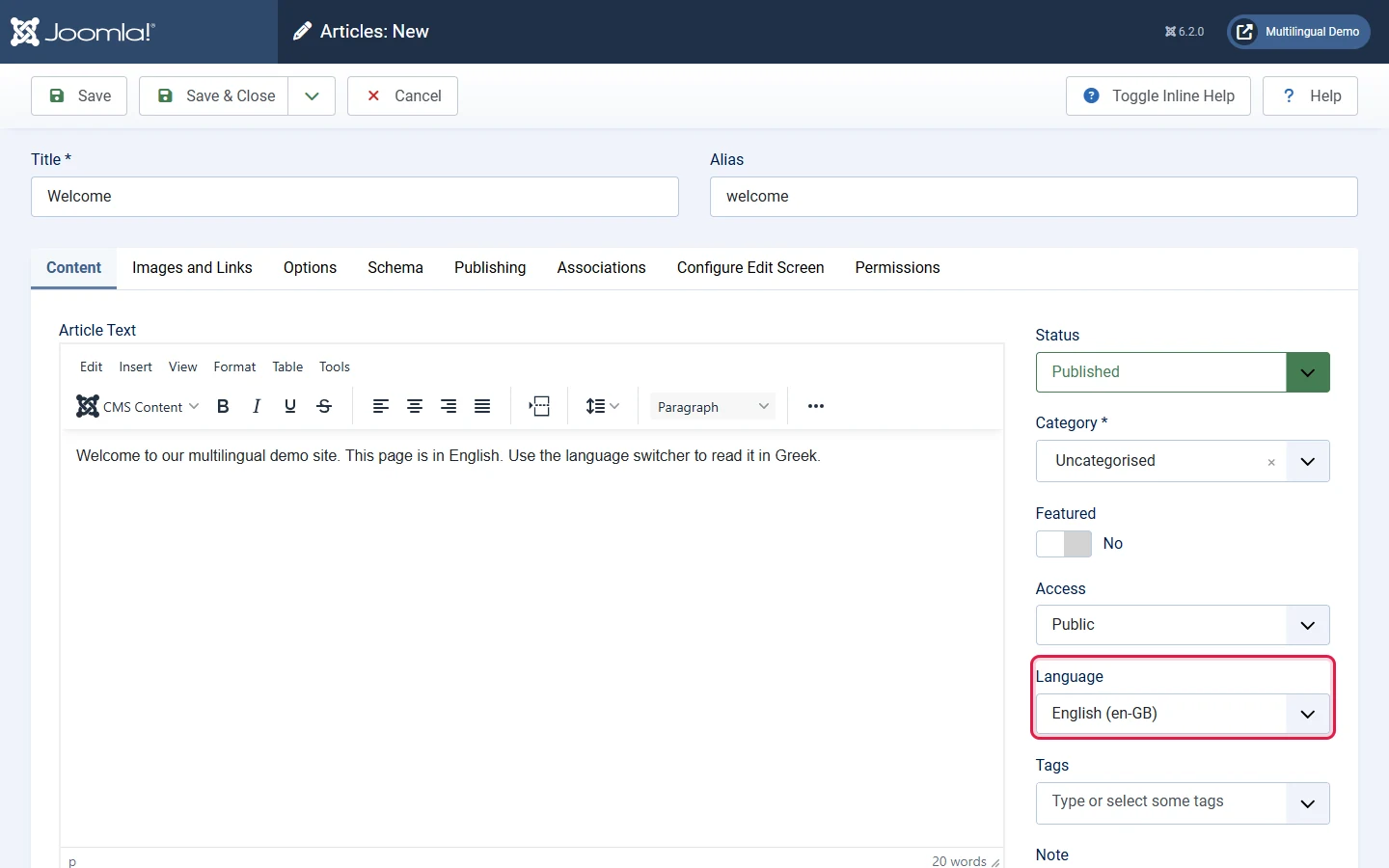
Do not create the Greek version as a new article yet. The next step creates it already linked to the original, which saves time and avoids mistakes.
7. Step 5: Link translations with Multilingual Associations
Go to Components → Multilingual Associations, choose the item type (Articles) and the reference language (English). The Not Associated column lists each language that is still missing a translation.
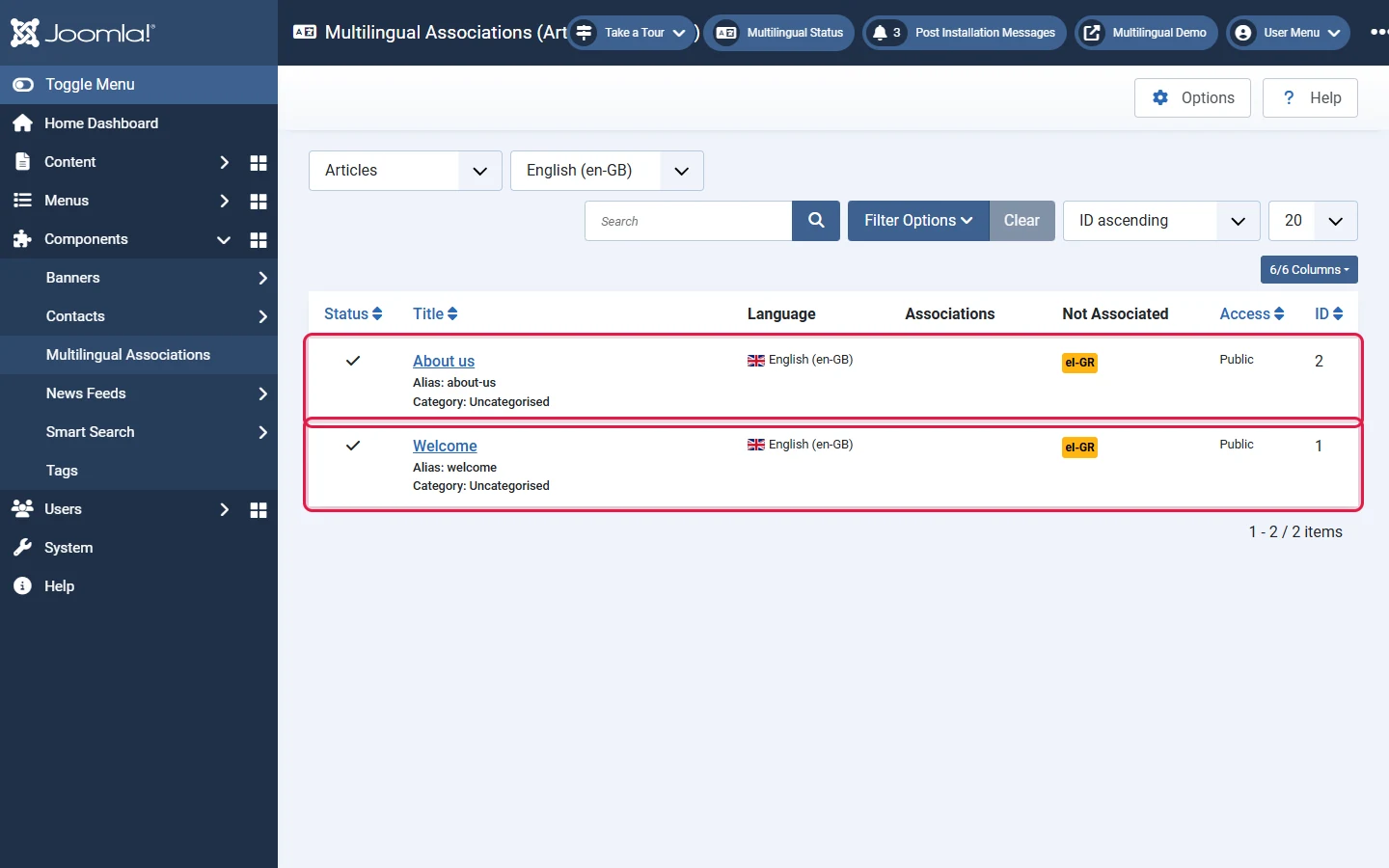
Click the el-GR badge in the Not Associated column. Joomla opens a side-by-side editor: the English reference on the left, an empty Greek article on the right.
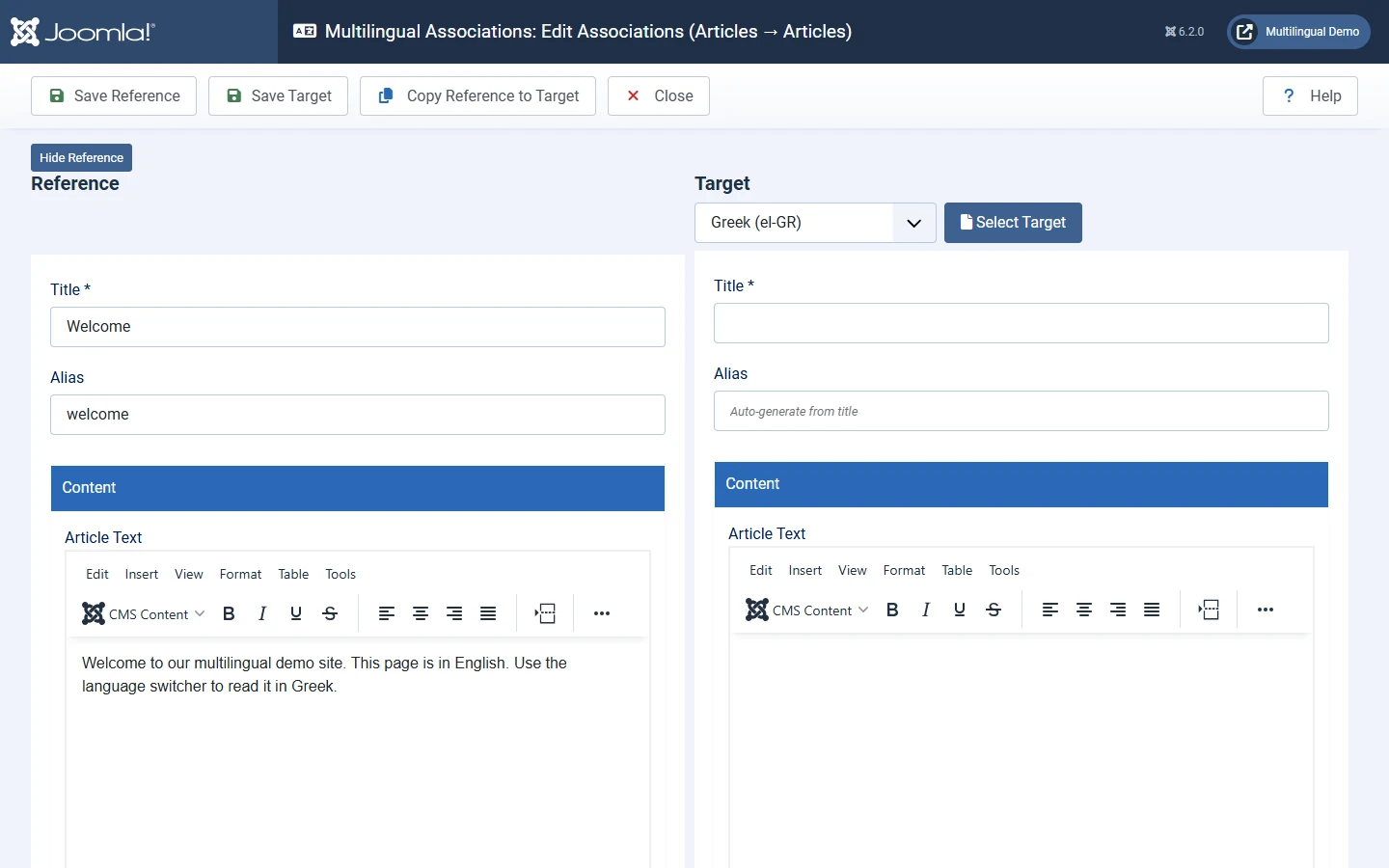
Type the translated title, alias and text in the target, then click Save Target. The new Greek article is saved with the right language and linked to the English one.
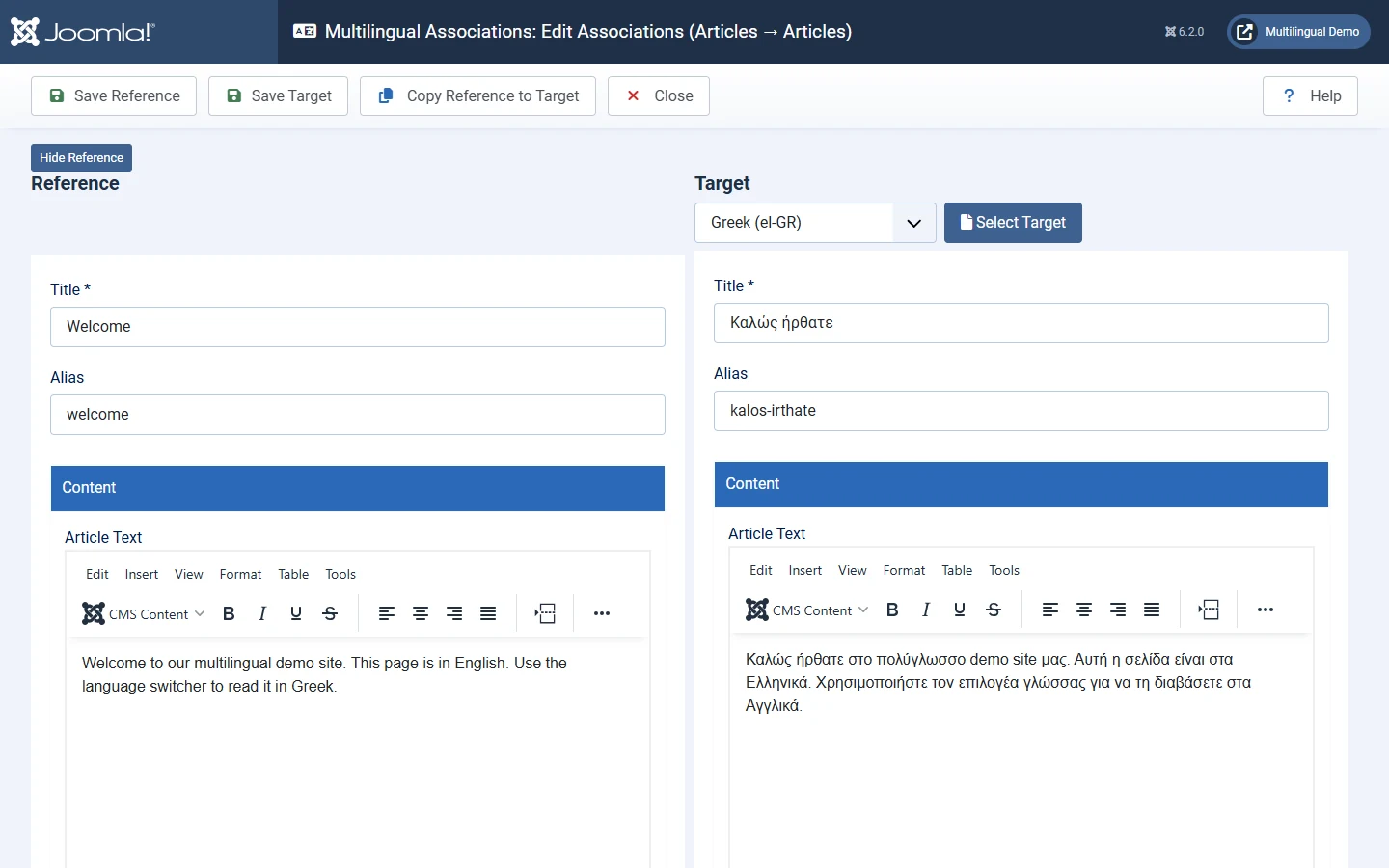
Copy Reference to Target is handy for long articles, but it immediately saves a copy of the English article as a new Greek article (named like "Welcome (2)") and it is unpublished. Always rename it, translate it and publish it, or you will end up with stray untranslated copies.
Back in the list, both articles now show el-GR under Associations:
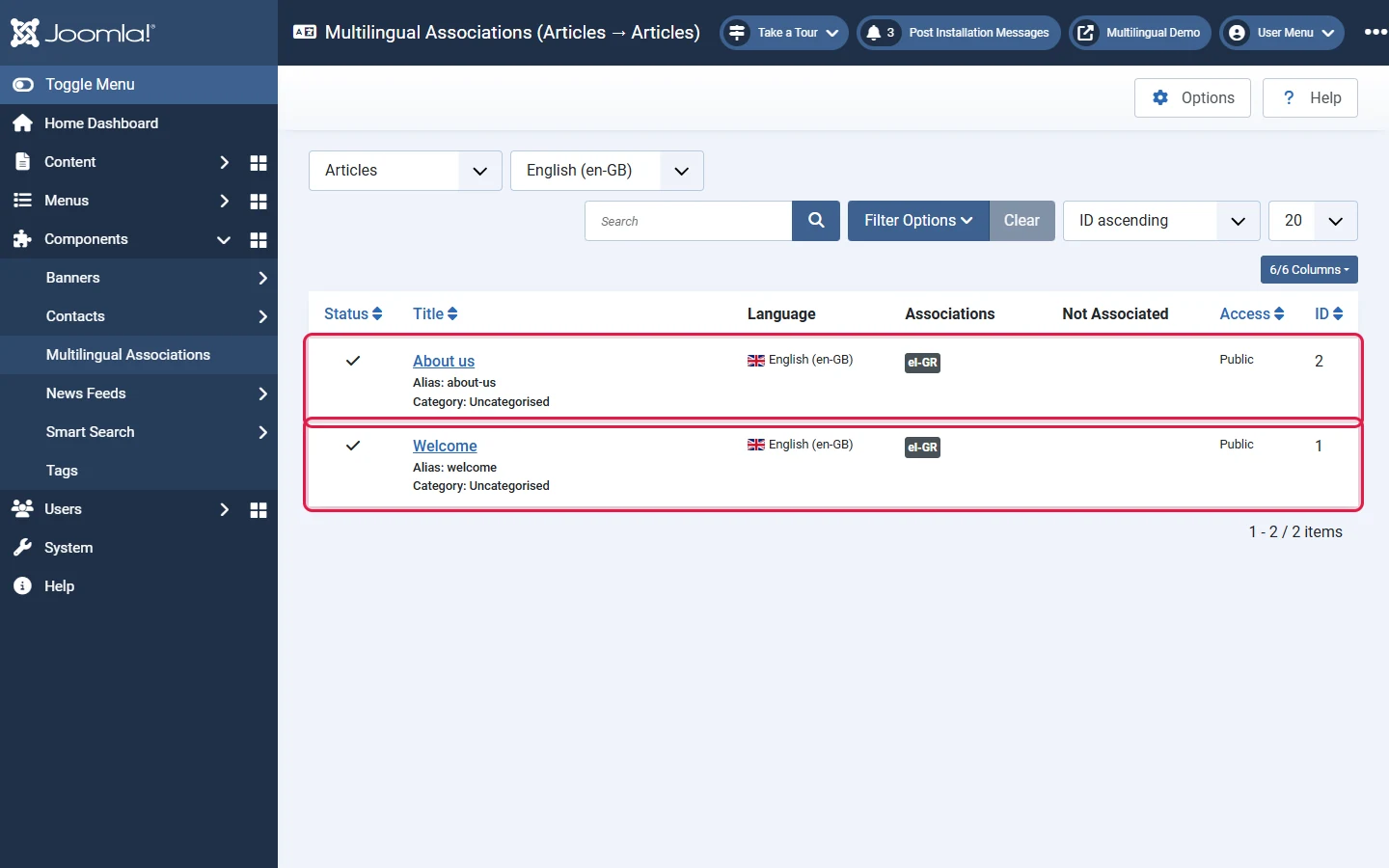
The same component handles categories, contacts, menu items, modules and news feeds. You can also link translations from an item's own Associations tab, which is what we do for menu items in step 7.
8. Step 6: One menu and one Home page per language
This is the step most people get wrong. A multilingual site needs:
- A separate menu per language. In Menus → Manage → New we created Main Menu (en) and Κεντρικό μενού (el).
- A Home menu item in each language menu, with Default Page set to Yes and Language set to that language.
- The original Home item set to language All, which stays where it is. Joomla needs it as a fallback.
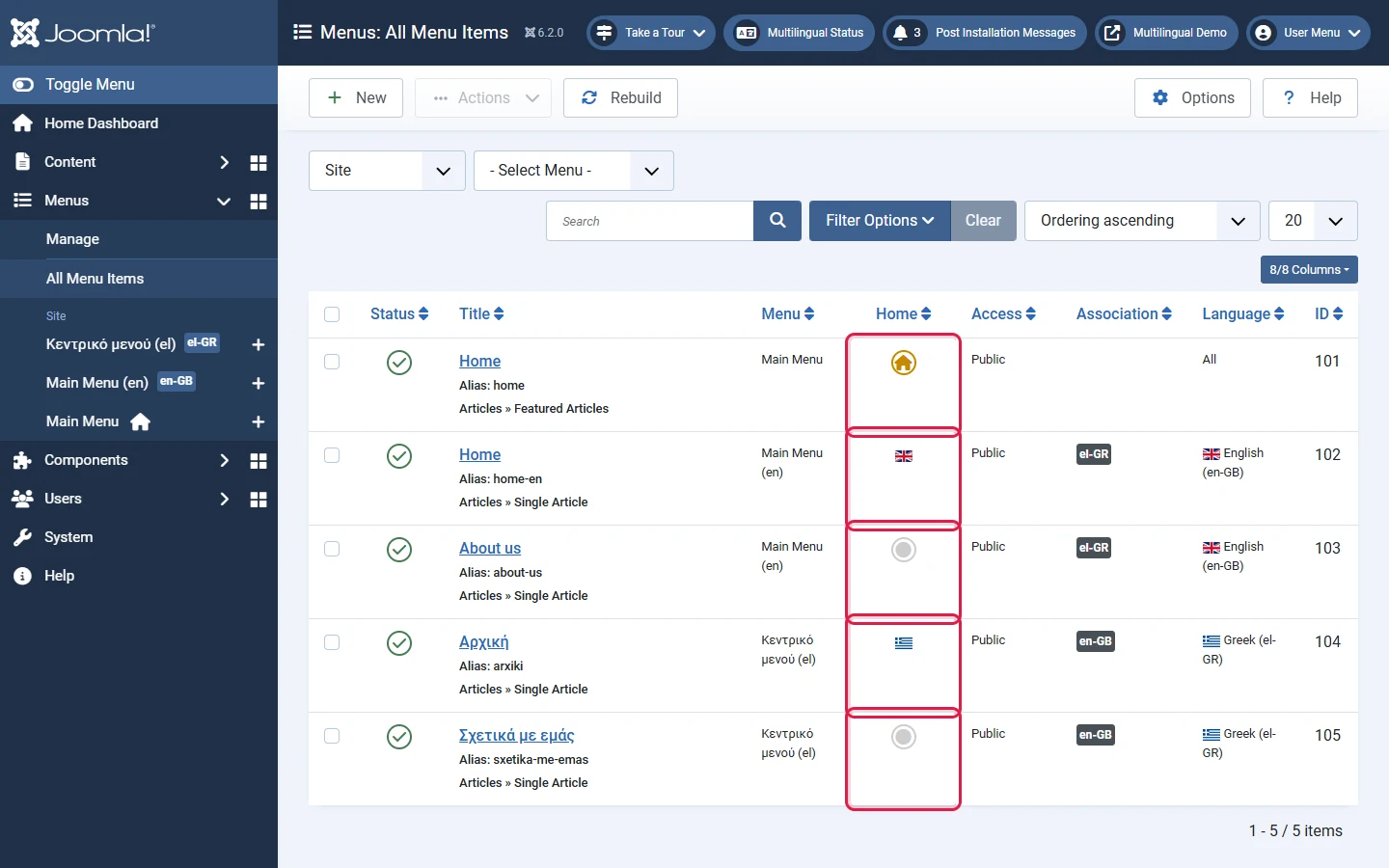
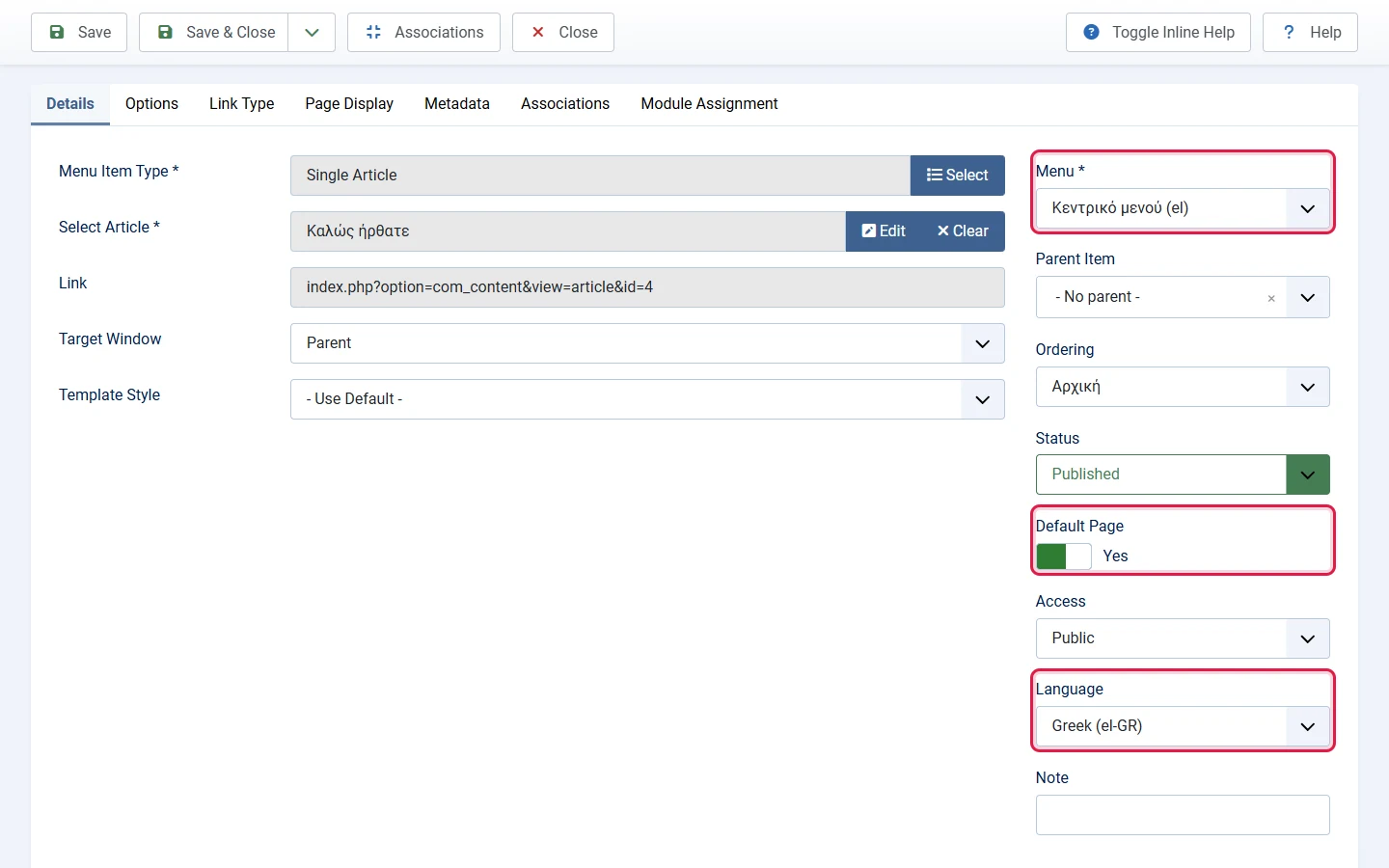
Do not delete or unpublish the Home item set to All, and do not change its language. Without it the site falls back to errors. Instead, keep it in its own menu and simply do not display that menu's module (see step 8).
9. Step 7: Associate the menu items
Open the English Home menu item, go to the Associations tab, select the Greek Home and save. Do the same for every page that exists in both languages (About us ↔ Σχετικά με εμάς). The link works in both directions, so you only set it once.
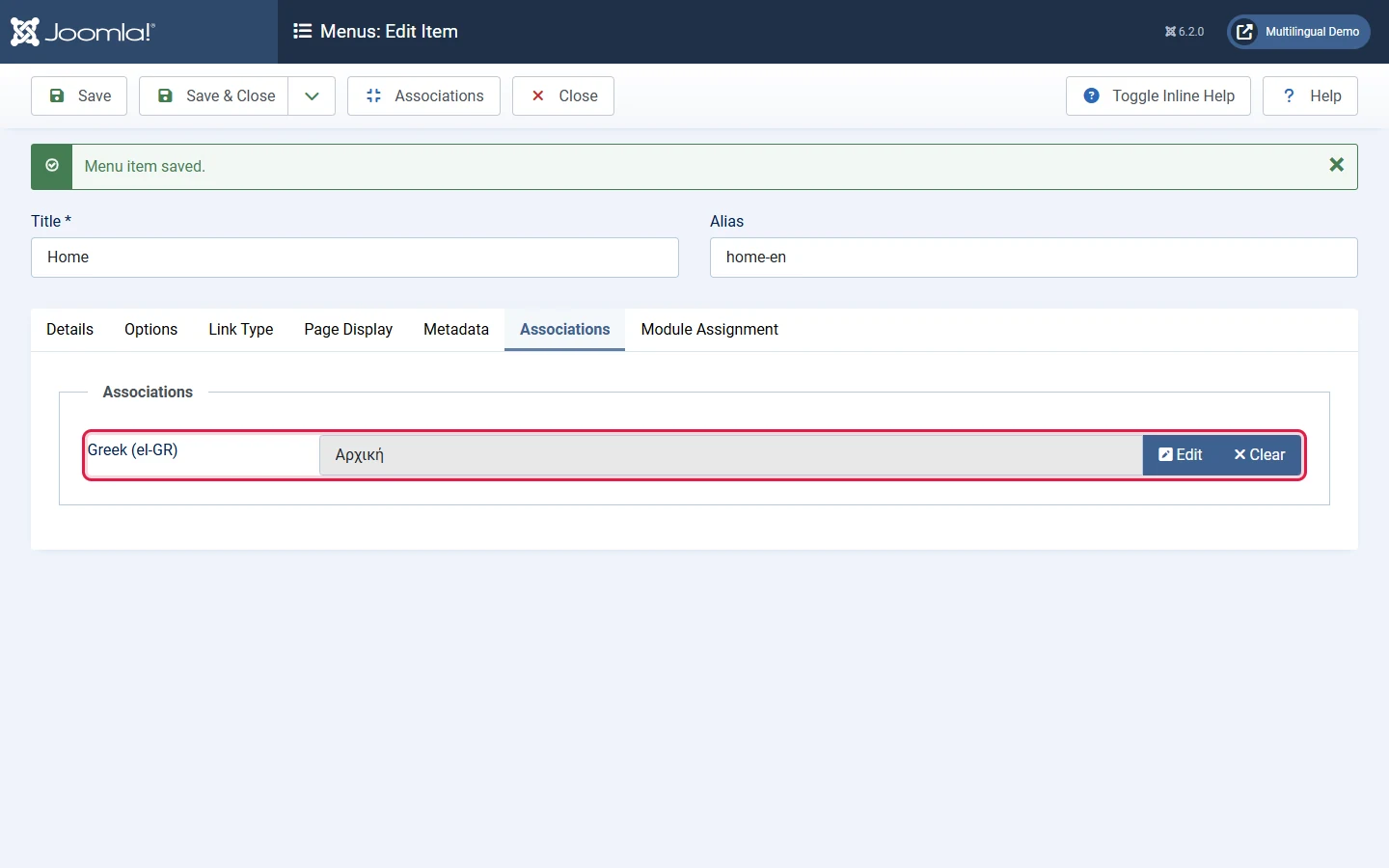
Article associations and menu item associations are separate. If a page is reached through a menu item, associate the menu items too, or the switcher may lose track of the matching page.
10. Step 8: Menu modules and the Language Switcher
In Content → Site Modules:
- Unpublish the old menu module that shows the menu with the All Home item.
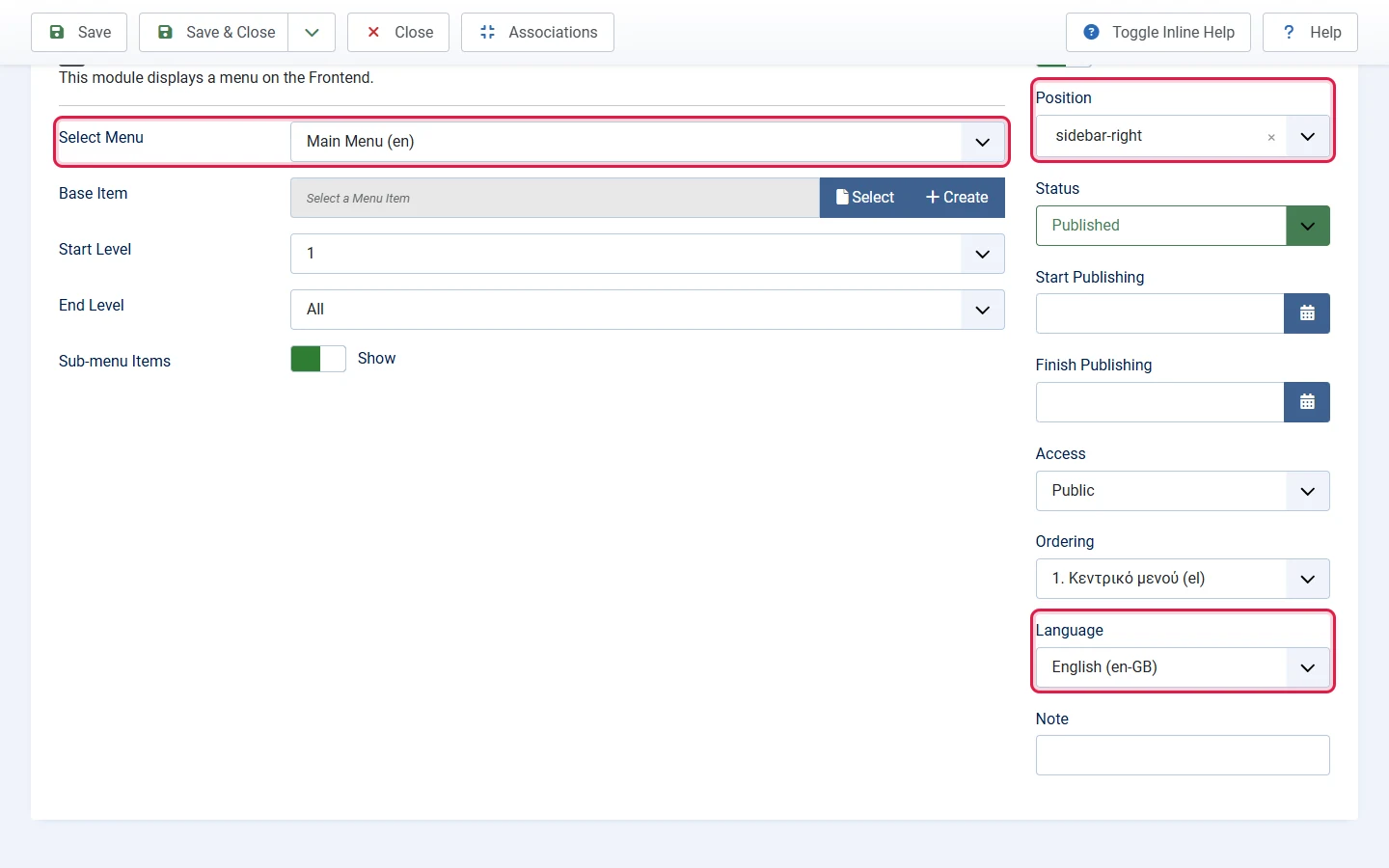
- Create a Menu module per language: Select Menu = that language's menu, Language = that language, same template position for both. The Language Filter shows only the one that matches the page.
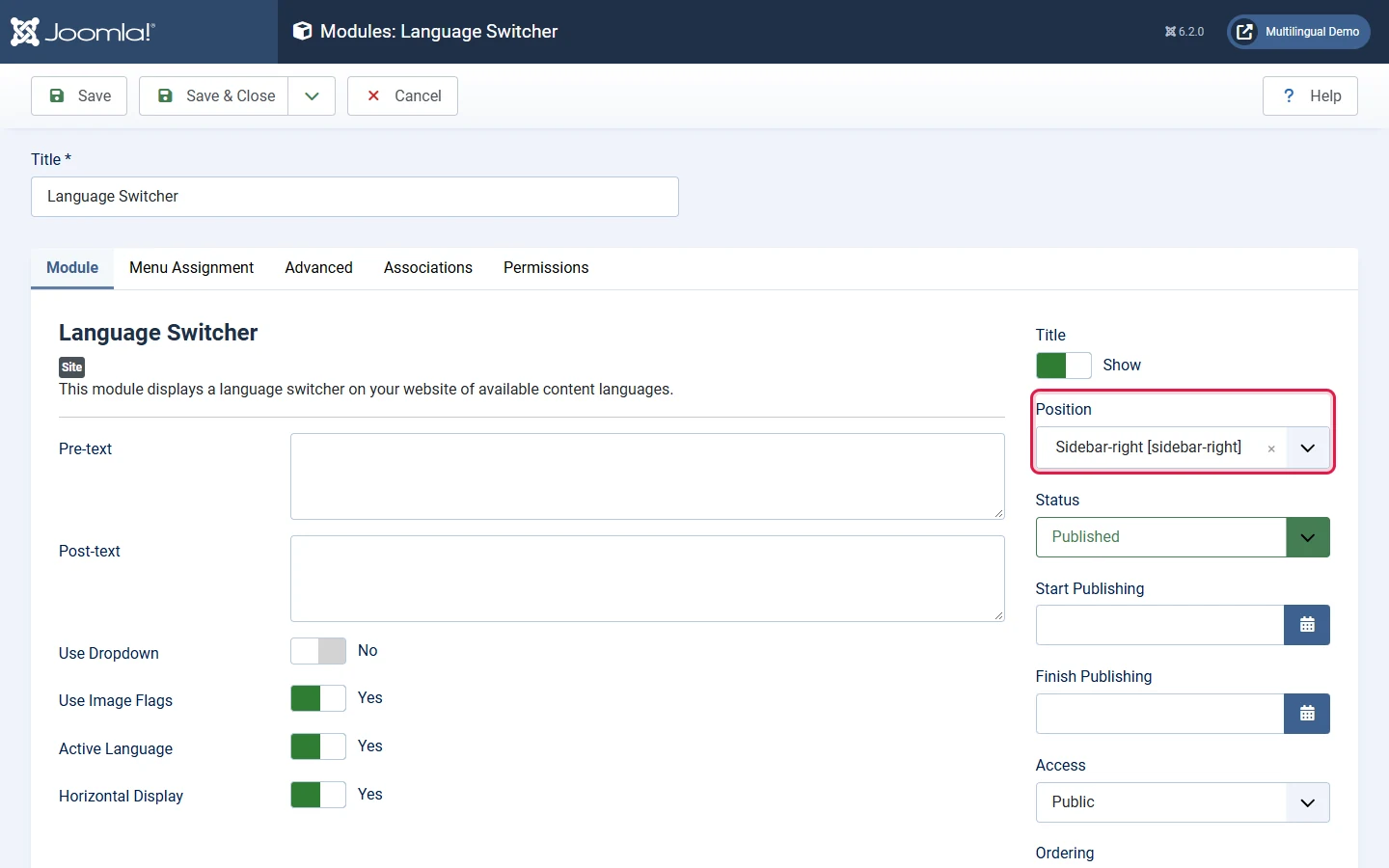
- Create a Language Switcher module with Language = All, and choose flags, names or a dropdown.
11. Step 9: Check everything with Multilingual Status
Once the Language Filter is enabled, the administrator header shows a Multilingual Status button. Click it. It checks the plugin, the switcher, and, for every language, the site language, the content language and the Home page.
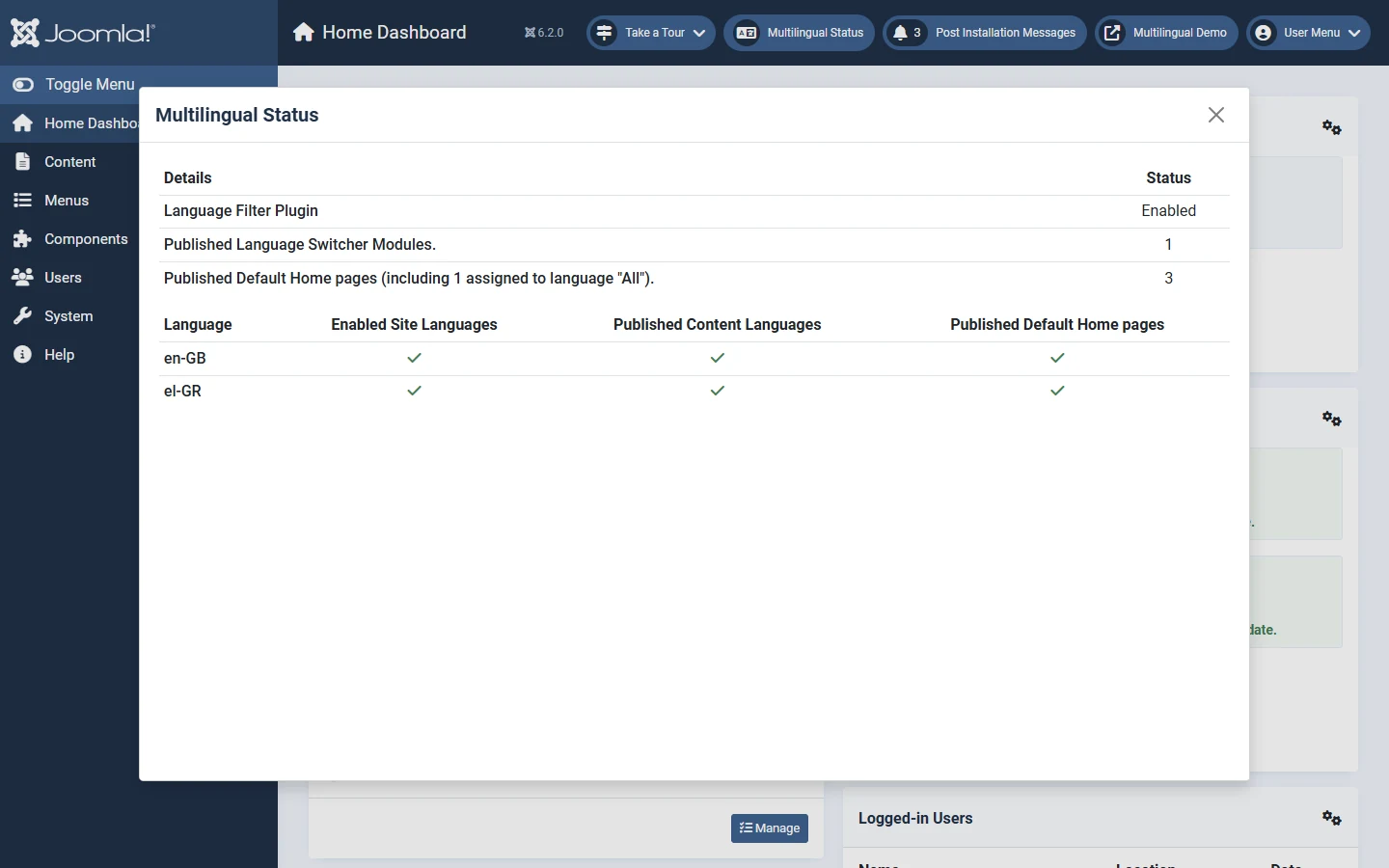
If any check is missing, this dialog tells you which language lacks what. It is the fastest way to debug a multilingual site.
12. The result
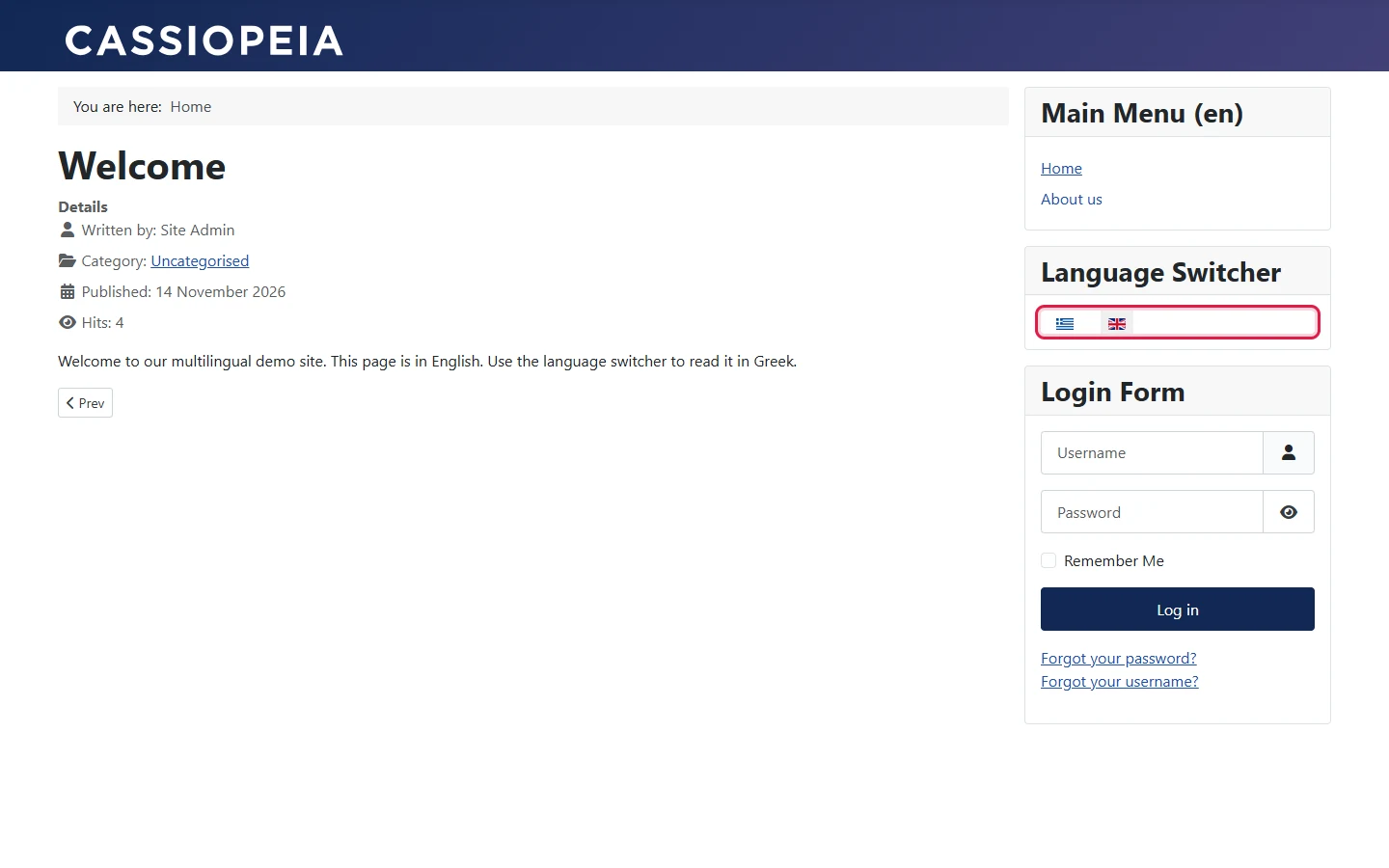
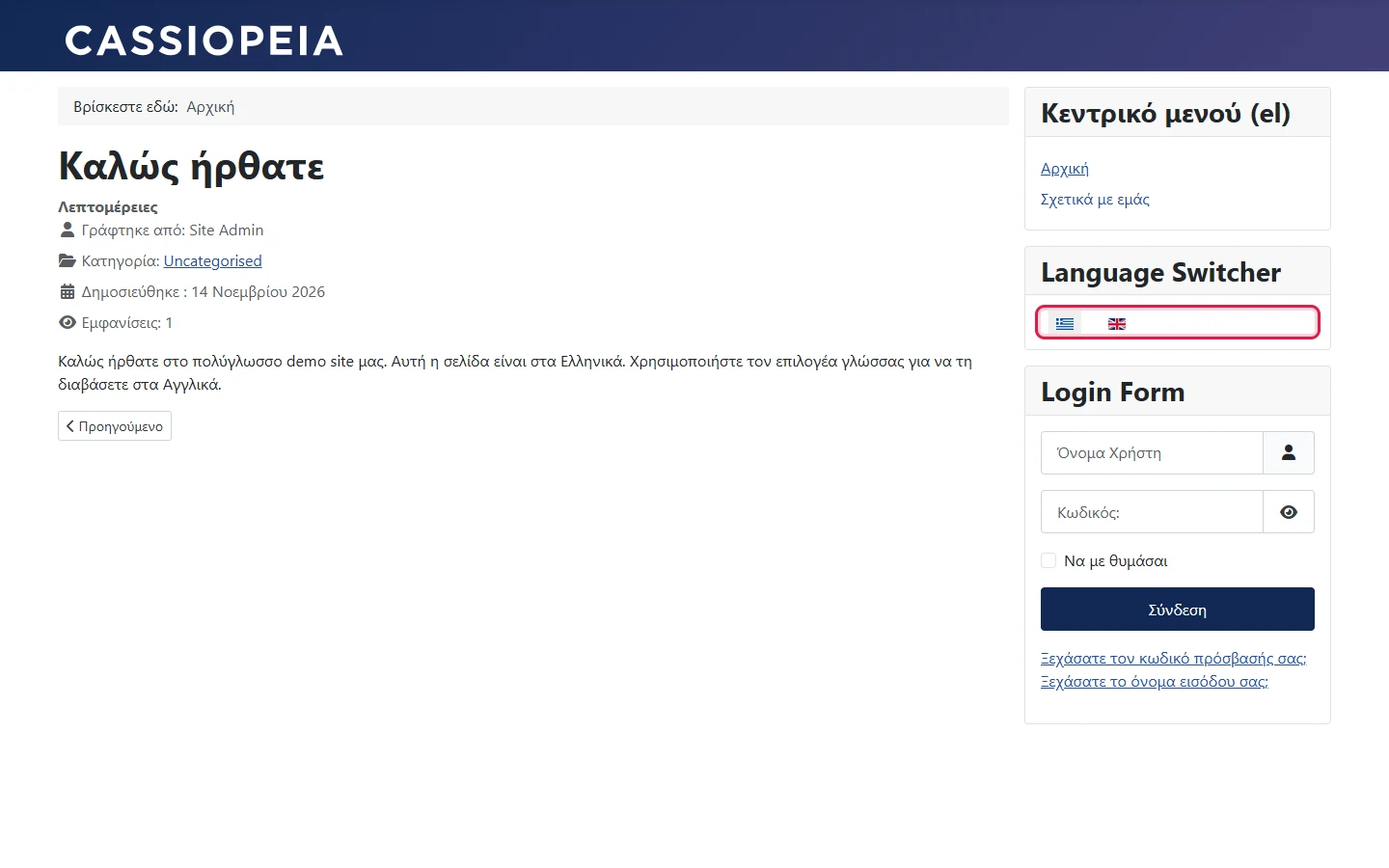
The front end now shows each language with its own menu and translated interface. On our test site, switching from /en/about-us took us straight to /el/sxetika-me-emas, and the page contained hreflang links for en-GB, el-GR and x-default, all generated by Joomla.
13. Multilingual features you get in core
- Language prefixes in URLs (
/en/,/el/), with the option to remove the default language's prefix. - Per-language content, categories, menus, modules, contacts and tags, all filtered automatically.
- Associations with a side-by-side translation editor for articles, categories, contacts, menu items, modules and news feeds.
- SEO built in:
hreflangalternate links andx-default, plus a custom site name and meta description per language. - Browser language detection for first-time visitors.
- Language Switcher with flags, native names or a dropdown.
- Different look per language by assigning a template style to a language's menu items.
- Language overrides (System → Language Overrides) to change any interface string per language without touching files.
- Per-user admin language, so every editor works in their own language.
- Multilingual Status check and Multilingual Sample Data for learning.
14. Things to be careful with
- Content languages can be created unpublished. Always check the Status column in Content Languages after installing a pack.
- Never remove the Home item set to All. You need it plus one published Home page per content language. Multilingual Status counts them for you.
- "All" means "not translated". On our Greek page, the category Uncategorised (language All) appeared in English. Give each language its own categories, or translate the category titles and set their language.
- Module titles are text too. Our Language Switcher title showed in English on the Greek page. Hide the title, create one module per language, or use a language override.
- Associate menu items, not just articles. Otherwise the switcher can land on the other language's home page.
- "Copy Reference to Target" saves immediately. It creates an unpublished copy named like "Title (2)". Translate and rename it, or delete it.
- Existing sites change URLs. Enabling the Language Filter adds a prefix to every URL. Plan 301 redirects in Components → Redirects and test on staging first.
- Settle URL codes and "Remove URL Language Code" before launch. Changing either later changes URLs and costs rankings.
- Language packs are extensions. Update them with Joomla (System → Update → Extensions), or interface strings will lag behind after a Joomla update.
- Clear the cache after multilingual changes if page or conservative caching is on, or visitors may see a mix of old and new menus.
15. Checklist
| # | Task | Where |
|---|---|---|
| 1 | Install a language pack per language | System → Install → Languages |
| 2 | Publish each content language, set native title, URL code and flag | System → Content Languages |
| 3 | Enable System - Language Filter with Item Associations on | System → Manage → Plugins |
| 4 | Create content with the right Language | Content → Articles / Categories |
| 5 | Translate and link items side by side | Components → Multilingual Associations |
| 6 | One menu and one Home item per language, keep Home "All" | Menus → Manage |
| 7 | Associate the menu items | Menu item → Associations tab |
| 8 | One menu module per language plus a Language Switcher | Content → Site Modules |
| 9 | Run Multilingual Status until everything is green | Administrator header |
| 10 | Check URLs, switcher, hreflang and untranslated titles on the front end | Front end |
Conclusion
A multilingual Joomla site needs no extensions, only the right order: install languages, publish the content languages, enable the Language Filter, create and link translations, give each language its own menu and Home page, add the switcher, and let Multilingual Status confirm the result. Watch for the few details that are easy to miss, such as unpublished content languages, the Home item set to All, and untranslated module and category titles, and you have a fast, SEO-friendly multilingual site built entirely on core.
Coming from WordPress, where this usually needs a plugin? Read Coming from WordPress to Joomla for the bigger picture.