Page 4 of 15
4. Step 2: Check and publish the content languages
Go to System → Content Languages. Joomla creates a content language automatically when you install a pack, but look closely at the status.
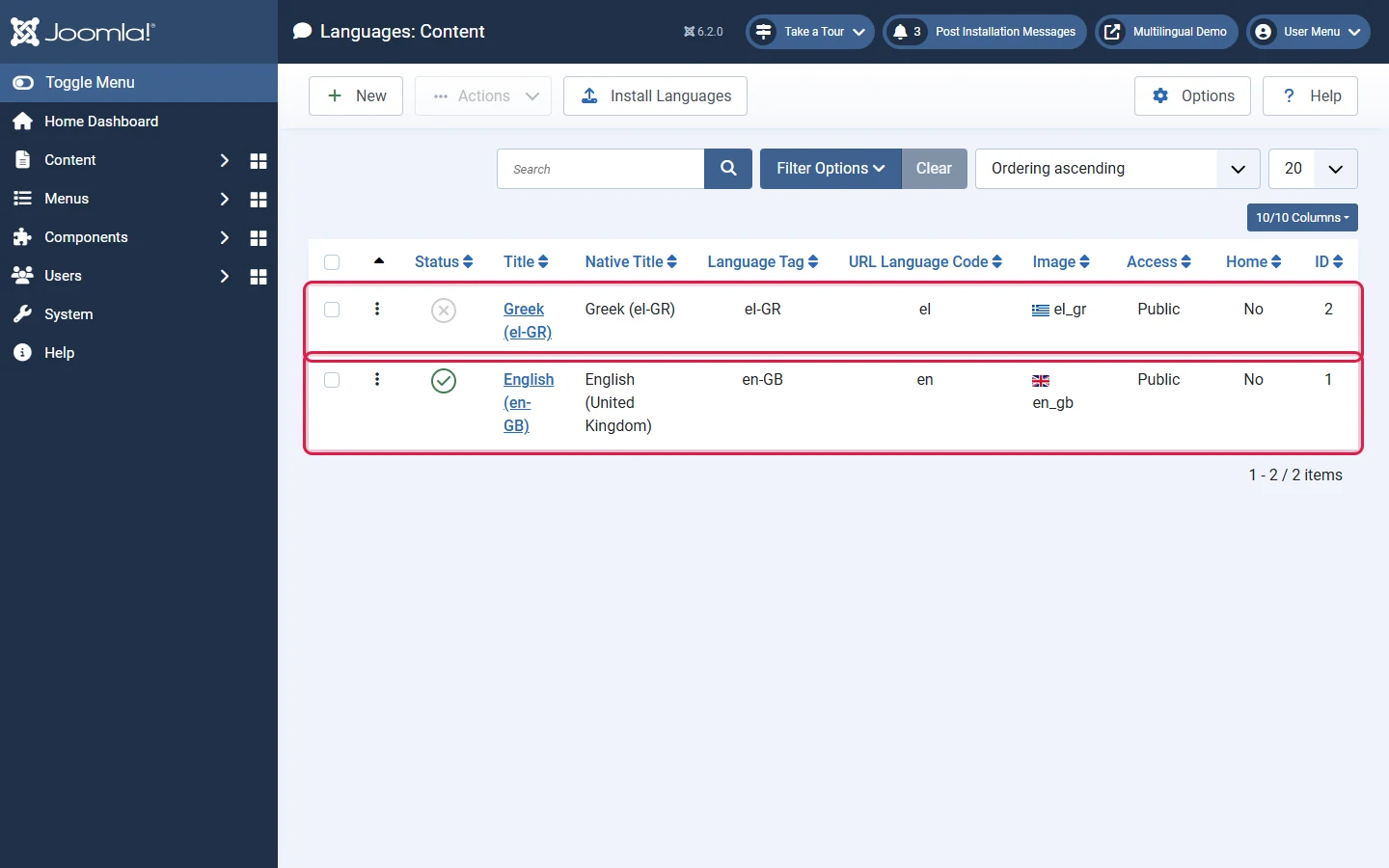
On our Joomla 6.2 test site, the Greek content language was created unpublished. An unpublished content language does not appear in the switcher and its content is not reachable. This is the first thing to check when "the second language does not show up".
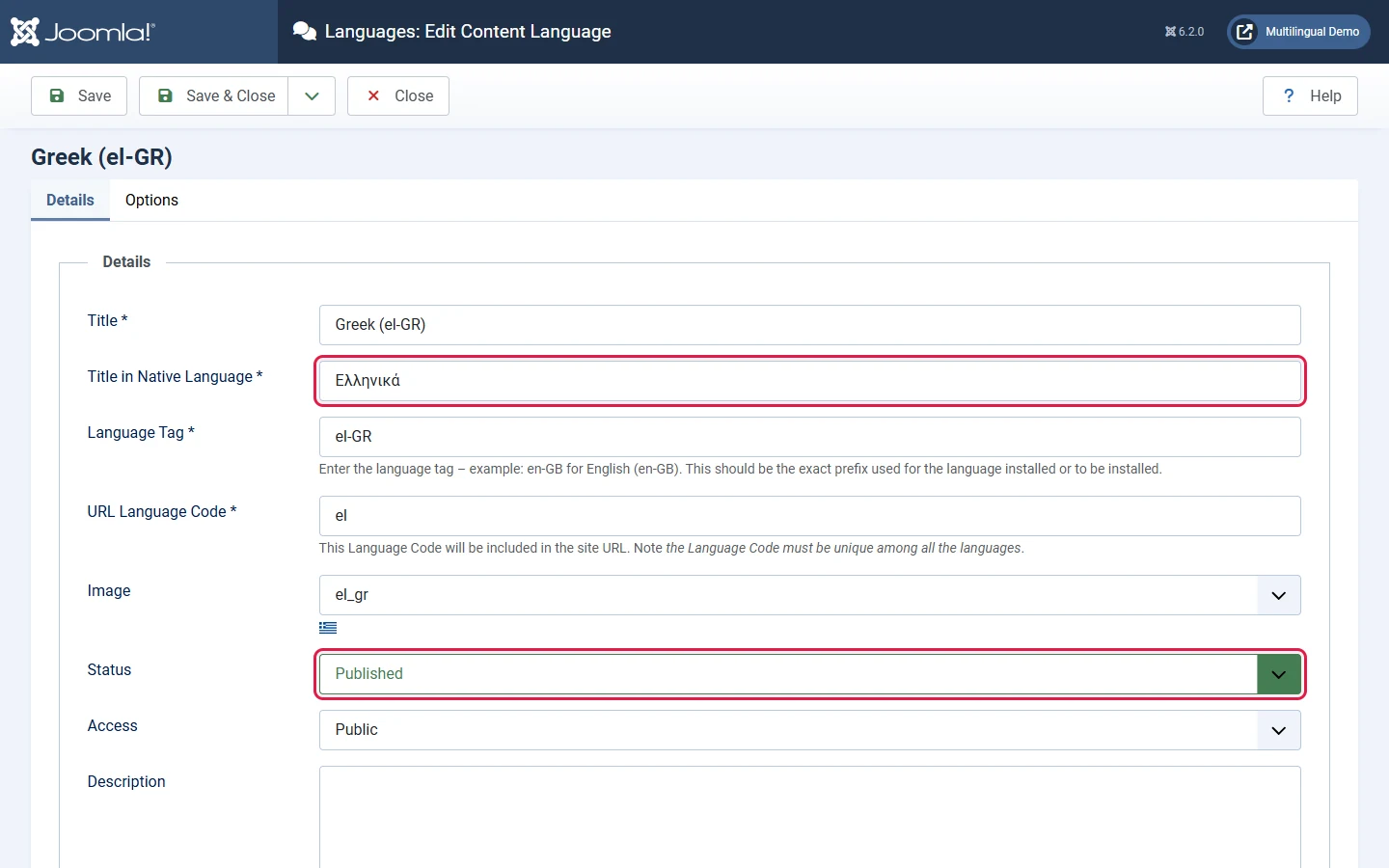
Open the language and review each field:
- Title in Native Language: what the switcher shows when you display language names. Use the language's own name, here Ελληνικά instead of "Greek (el-GR)".
- Language Tag: must match the installed pack exactly (
el-GR). - URL Language Code: the URL prefix. It must be unique across languages.
- Image: the flag used by the switcher.
- Status: set it to Published.
The Options tab lets you set a Custom Site Name and default meta description per language, so the browser title and search snippets are translated too.