Page 5 of 15
5. Step 3: Enable the Language Filter plugin
Go to System → Manage → Plugins and search for language. Two system plugins matter:
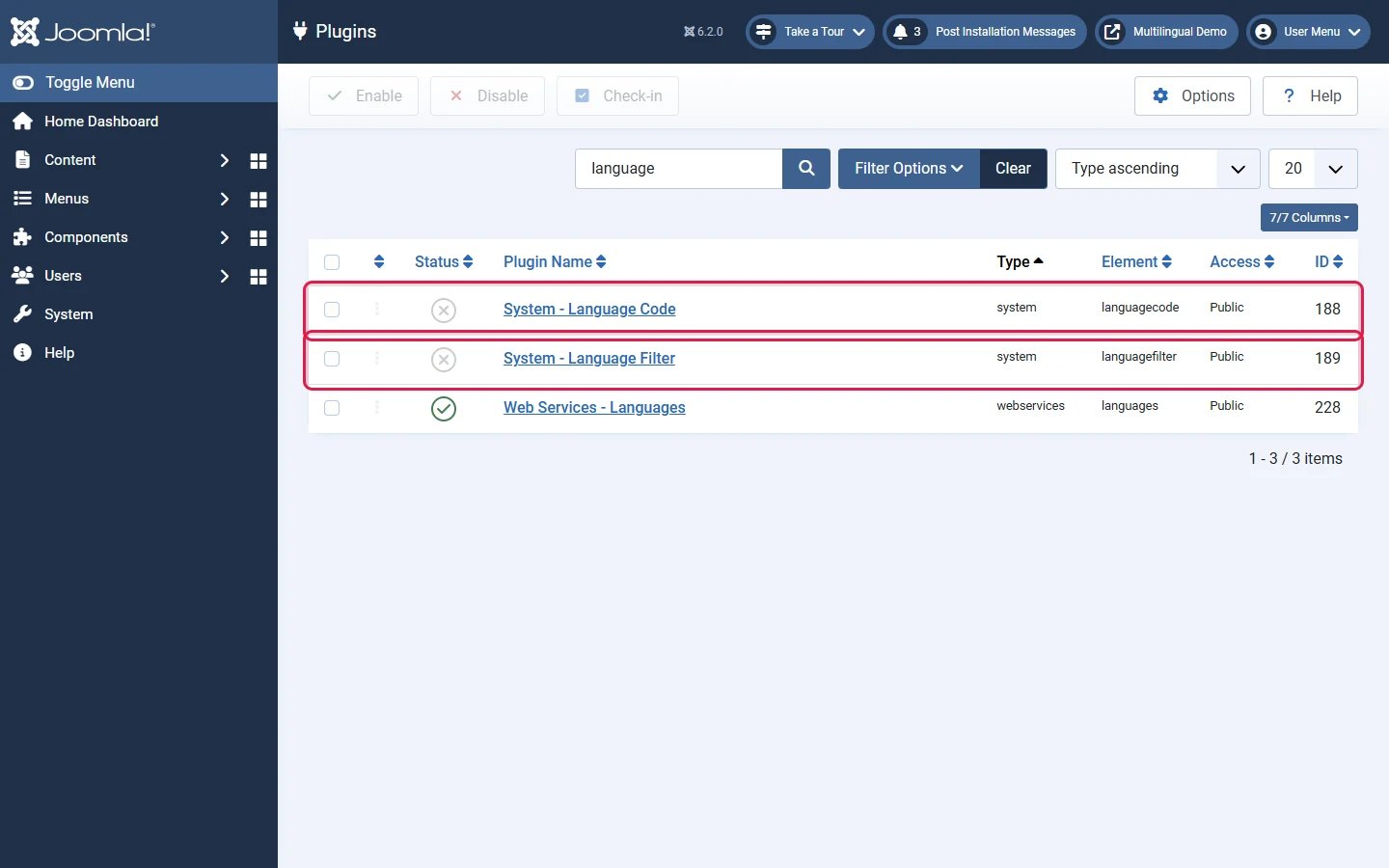
- System - Language Filter is required. It is the switch that makes the site multilingual.
- System - Language Code is optional. It changes the language code Joomla prints in the page's HTML and
hreflangtags, for example fromel-grtoel. Leave it off unless you have a reason.
Open System - Language Filter, set Status to Enabled and review the options:
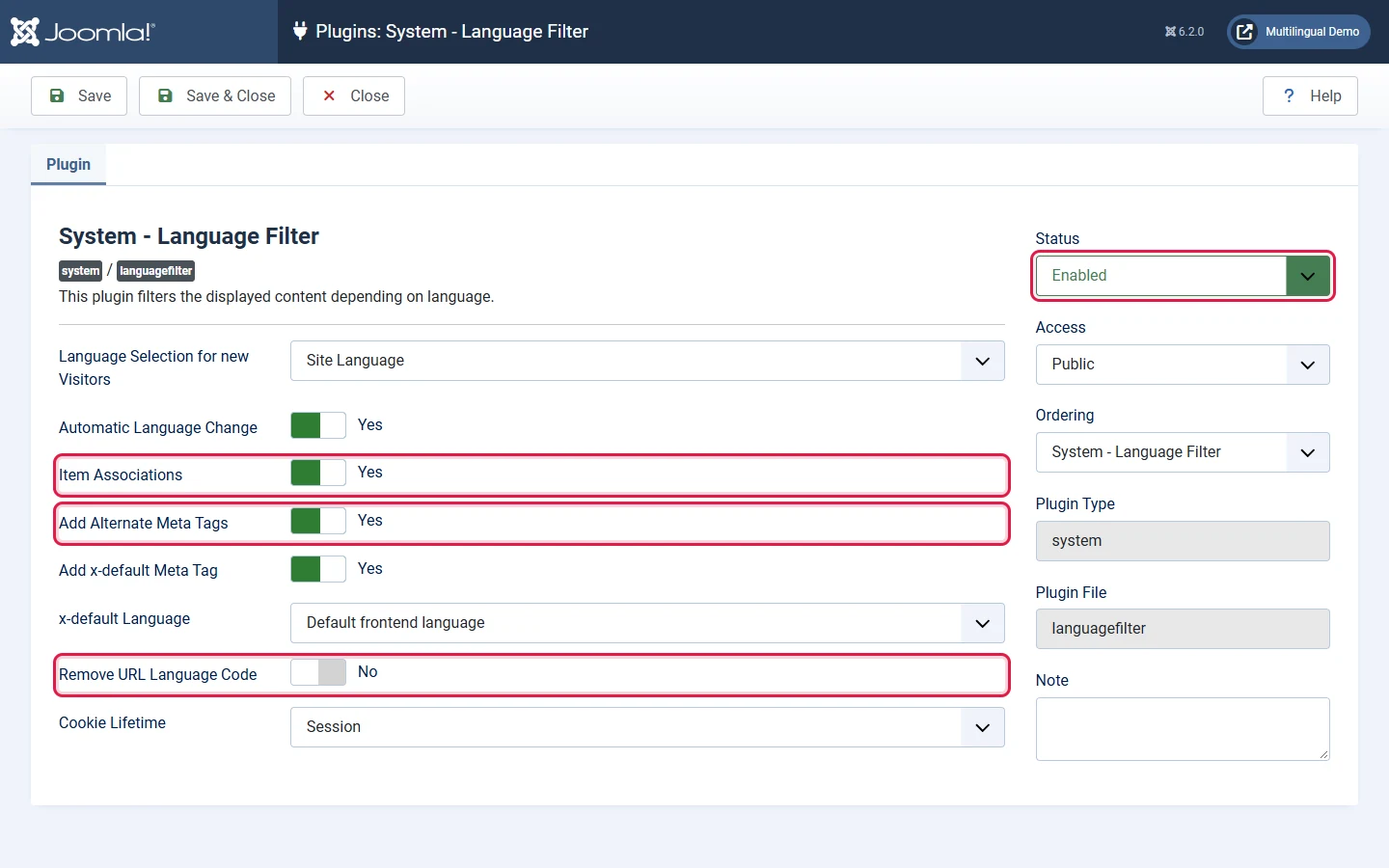
- Language Selection for new Visitors: Site Language sends everyone to the default language. Browser Settings uses the visitor's browser language when you have it.
- Automatic Language Change: when a logged-in user switches language, their account's site language is updated too.
- Item Associations: keep this on. Without it, the switcher always goes to the home page of the other language.
- Add Alternate Meta Tags and Add x-default Meta Tag: output the
hreflanglinks that tell search engines which pages are translations of each other. - Remove URL Language Code: removes the prefix for the default language only (
/about-usinstead of/en/about-us). Decide this before launch. Changing it later changes every URL of that language. - Cookie Lifetime: how long the chosen language is remembered (session or one year). The language cookie is functional, but mention it in your cookie policy.