If you build sites with WordPress, you already know most of what Joomla does. Posts, pages, widgets, themes and plugins all have Joomla equivalents. What changes is how they connect: in Joomla, menu items decide where and how content appears, and many features you add with plugins in WordPress are already in core.
This guide is for WordPress users, site builders and agencies. After reading it you will know where everything lives in the Joomla 6 administrator, how to build a page the Joomla way, what you gain and what you give up, and how to plan a migration. It describes both platforms as of November 2026, so some details may change with future releases.
1. The mindset shift: content, categories and menu items
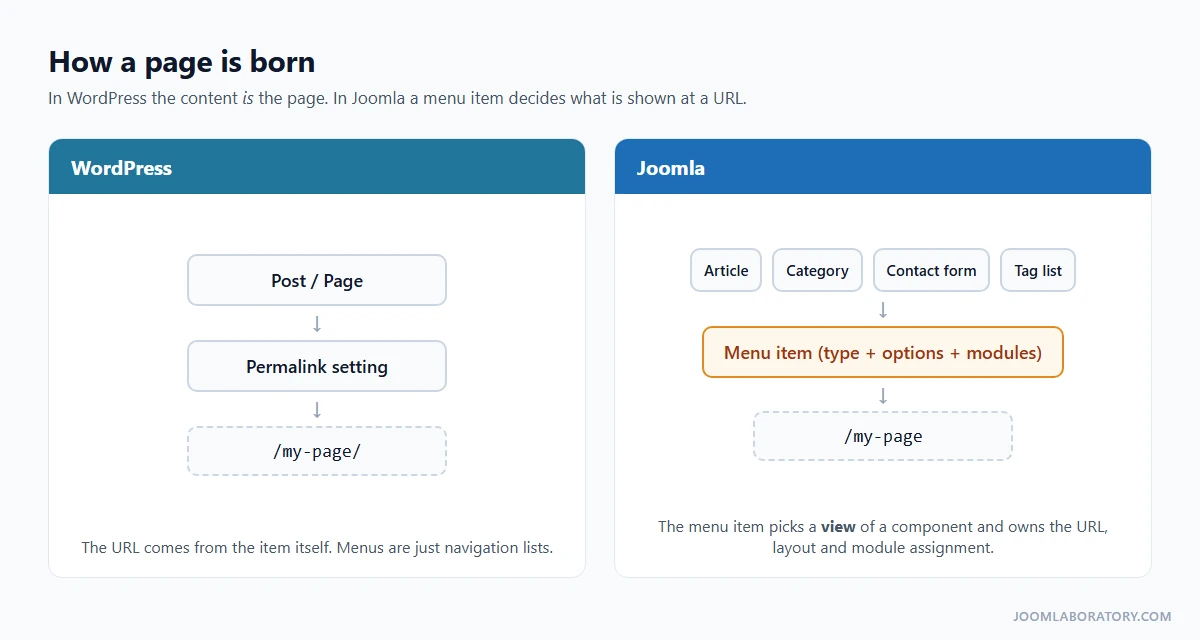
In WordPress, the type of content decides the type of page. A post goes into the blog, a page stands on its own with its own permalink, and a menu is only a list of links.
Joomla separates what you publish from how and where it appears:
- Articles are the content. There is one content type for everything, from a blog post to an "About us" page.
- Categories organise articles. Every article belongs to exactly one category.
- Menu items turn content into pages. A menu item points to a view (a single article, a category blog, a contact form, a search page) and owns that page's URL, layout options, page title, meta data, module assignment and template style.
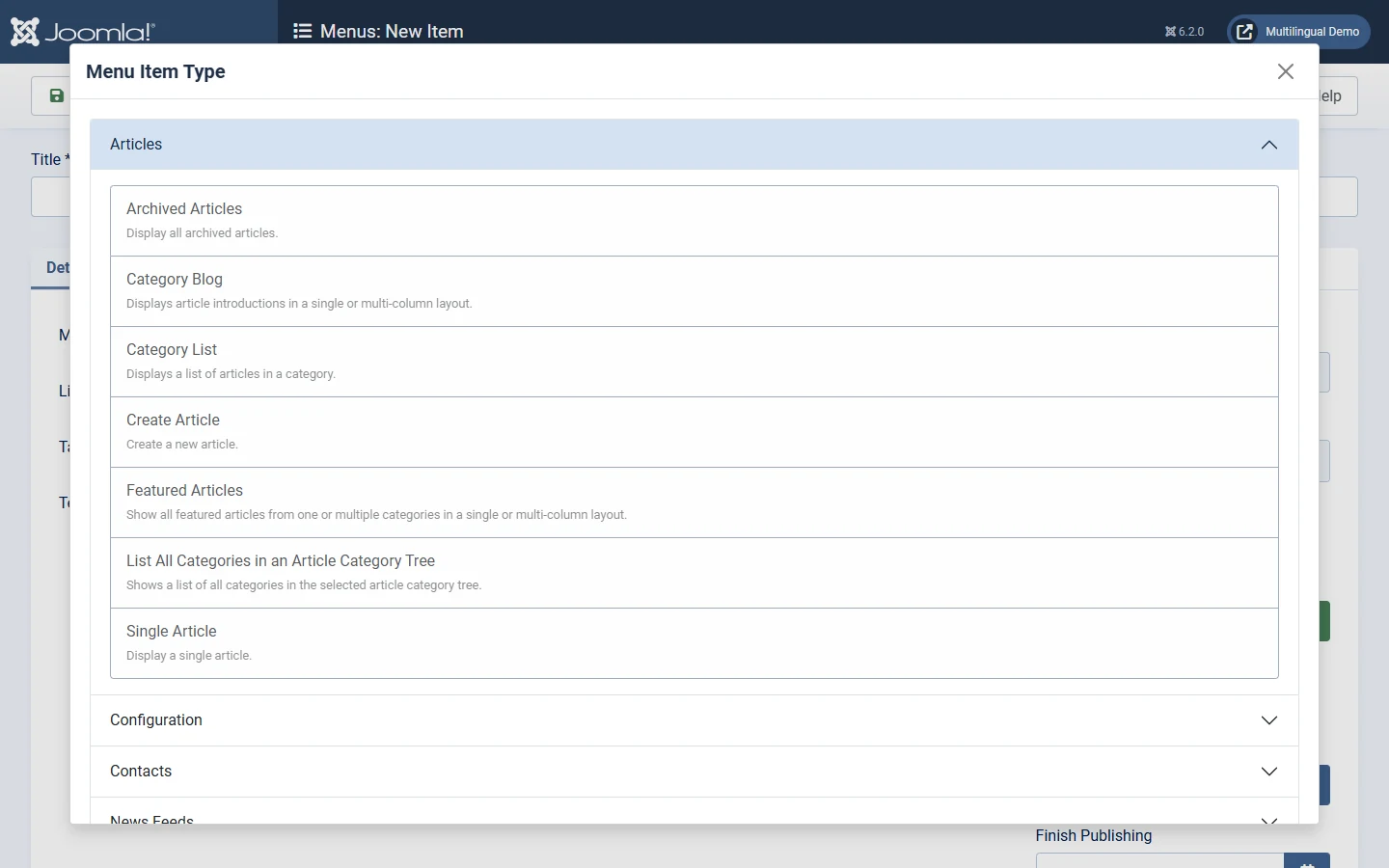
When you create a menu item, the first thing you choose is its Menu Item Type. This list is the real "page builder" of Joomla: every component offers its own views, and third-party extensions add more.
An article does not need its own menu item. Joomla shows it through the nearest menu item for its category and uses that item's URL path, settings and modules. That is how /tutorials/your-article works on this site: there is one menu item for the Tutorials category, not one for every tutorial.
If you remember one thing from this guide: menu items control how and where content appears. Most "where is the setting for...?" questions are answered by the menu item, or by the component's Options button.
Tip: need a page that is not in the navigation, such as a landing page or a "Thank you" page? Create a separate menu (for example "Hidden Menu") and do not publish a menu module for it. Its items still get clean URLs.
2. The vocabulary map
Most WordPress concepts exist in Joomla under a different name. Some are split into more specific parts.
| WordPress | Joomla | What is different |
|---|---|---|
| Posts and pages | Articles | One content type. A menu item makes an article a page. |
| Permalinks | Menu items + SEF URLs | The URL comes from the menu item alias and the category path. |
| Categories (hierarchical) | Categories (nested) | One category per article. Each category has its own permissions, access level and language. |
| Tags | Tags | Can be nested and used on articles, categories, contacts and more. |
| Themes and child themes | Templates, template styles and child templates | Separate site and administrator templates. One template can have several styles. |
| Widgets and widget areas | Modules and module positions | Each module chooses the pages it appears on, its access level and its language. |
| Plugins | Extensions | Split into components, modules and plugins (see page 3). |
| Shortcodes | Content plugins | For example |
| Hooks (actions and filters) | Plugin events | For example onContentPrepare, onContentBeforeSave, onAfterRender. |
| Custom fields / ACF | Custom fields | In core for articles, categories, contacts and users. |
| Roles (5 default) | User groups + access levels | Configured in the administrator, no code needed. |
| WP-Cron | Scheduled Tasks | With an interface, run by the lazy scheduler, web cron or the CLI. |
Three mappings deserve a note:
- Shortcodes → content plugins. A content plugin replaces a tag in the article text when the page is rendered. The core Load Modules plugin gives you
{loadmodule},{loadposition}and - Hooks → plugin events. Instead of
add_action()infunctions.php, you write a small system or content plugin that subscribes to events. It installs, updates and switches off like any other extension. - Custom post types. There is no one-to-one equivalent. For most sites, a dedicated category plus custom fields does the job. For data-driven applications, use a component built for that purpose.
3. Articles, categories and tags
Categories carry rules, not only labels
WordPress categories are hierarchical too, and a post can sit in several of them. In Joomla, an article belongs to exactly one category, and the category does real work:
- It has its own description, image, access level, language and permissions.
- Permissions set on a category apply to every article in it. That is how one team edits only "News" and another only "Events".
- A Category Blog or Category List menu item turns it into a listing page, with options for columns, ordering, pagination and which details to show.
For cross-cutting topics, use tags (Components → Tags). A Tagged Items menu item lists everything with a tag, whatever its category.
The home page
WordPress sets the front page in Settings → Reading. In Joomla, the home page is simply the menu item marked as Default Page (the house icon in the menu items list). A Featured Articles menu item gives you the classic "latest posts" front page: mark articles as Featured and they appear there. Any other menu item type, such as a Single Article, gives you a static home page.
Read More instead of the more tag
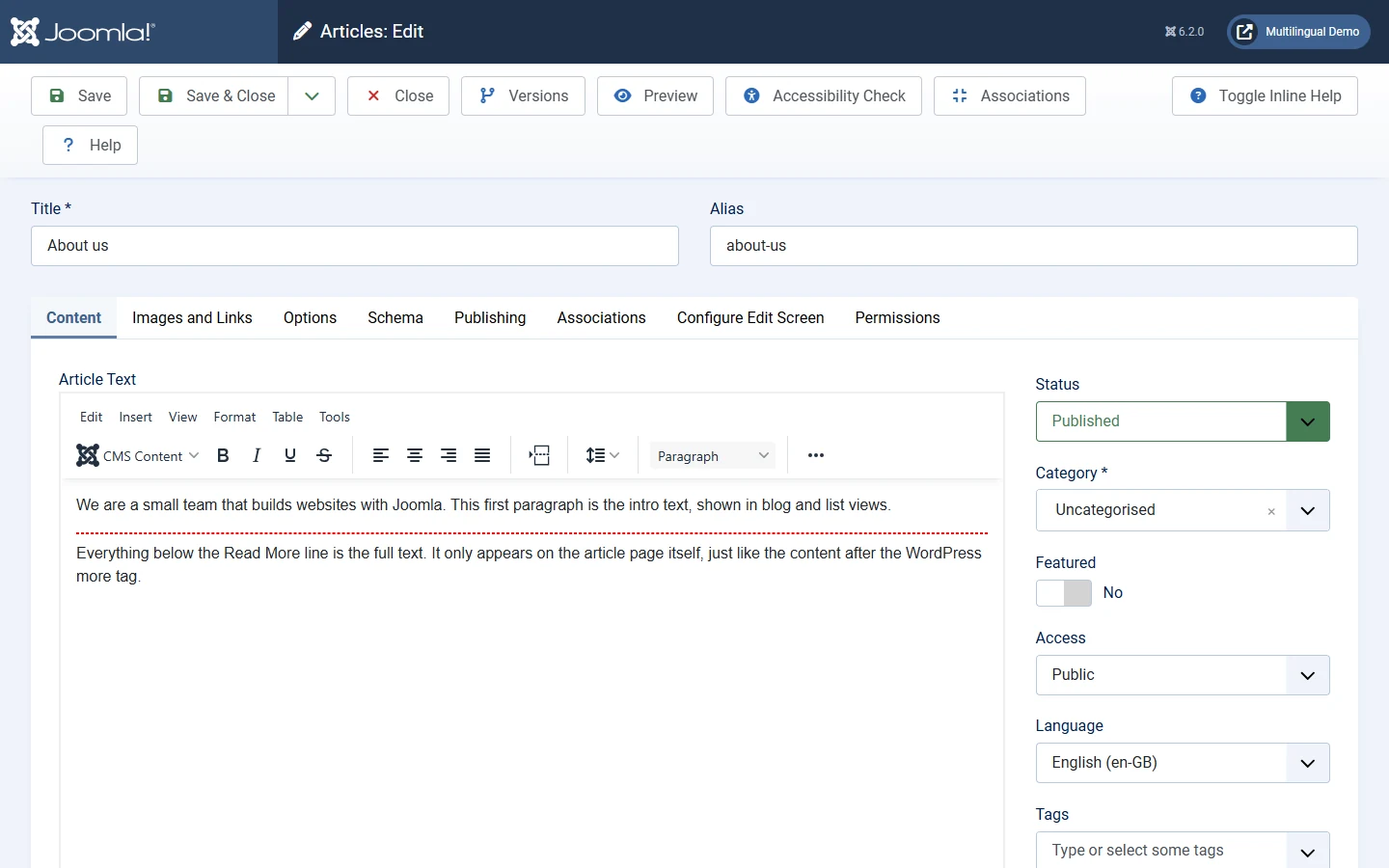
The Read More button in the editor inserts a dashed line. Everything above it is the intro text, shown in blog and list views. Everything below it appears only on the article page, exactly like the content after the WordPress <!--more--> tag.
Built in, no plugin needed
- Versions: every save is kept in content history, so you can compare and restore.
- Scheduling: Start Publishing and Finish Publishing dates on articles and modules, so content can also expire on its own.
- Per-article SEO: meta description, robots settings and a Schema.org tab on every article.
4. Hands-on: build an About page in five minutes
Doing it once makes the menu-item model click. On any Joomla 6 site:
- Write the content. Content → Articles → New. Title: About us. Pick a category, write a few lines, and click Save & Close. The article exists but has no page of its own yet.
- Create the page. Menus → Main Menu → New. Title: About us. Click Select next to Menu Item Type, choose Articles → Single Article, then select your article. Save.
- Visit it. Open
/about-uson your site. The URL comes from the menu item's alias, and the link appears in your main menu. - Control the sidebar. Content → Site Modules, open a module, go to Menu Assignment, choose Only on the pages selected and tick About us. That module now appears on this page only.
In WordPress, steps 2 and 4 would usually need a page plus a widget-visibility plugin. In Joomla they are two core settings.
5. Modules instead of widgets
A module is Joomla's widget, and a template position is its widget area. Menus, the login box, "Latest Articles" lists and blocks of custom HTML are all modules.
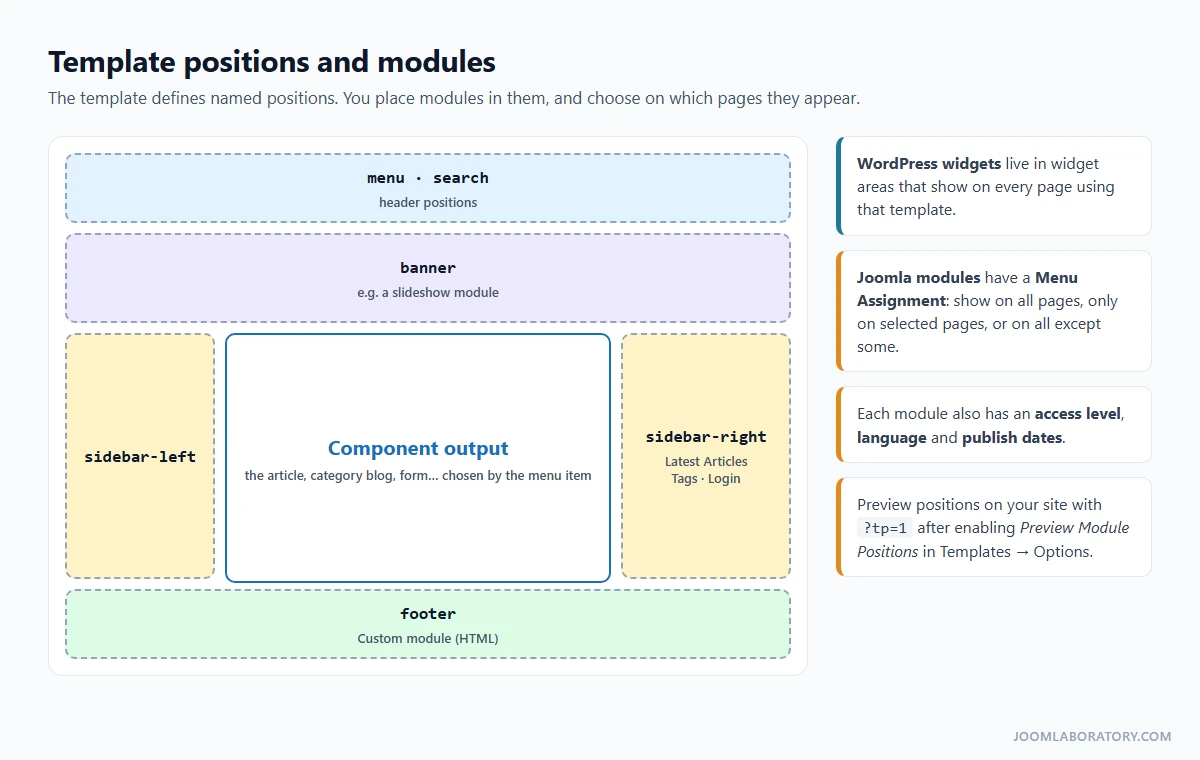
The big difference is Menu Assignment: every module decides on which pages it appears.
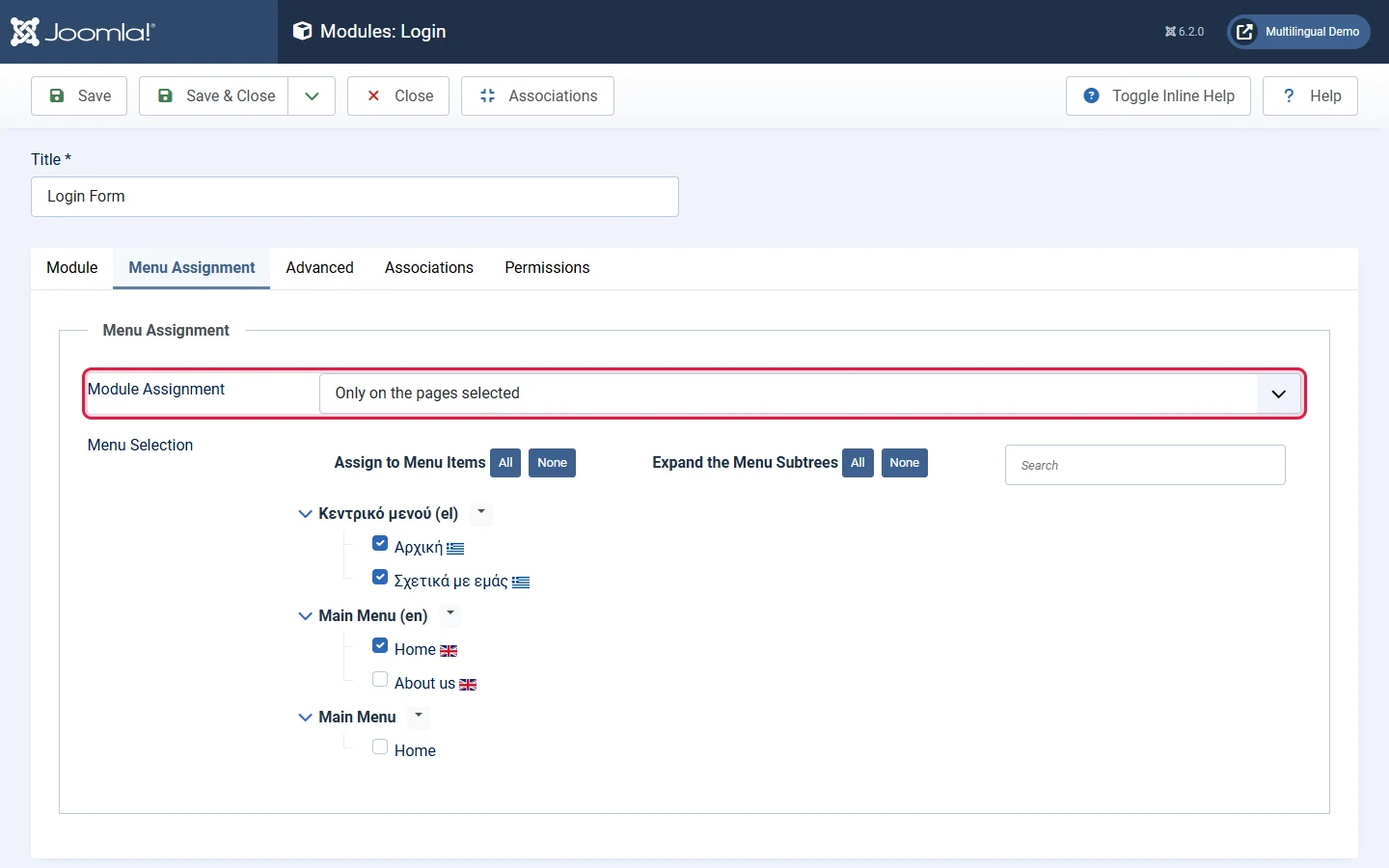
Each module also has its own access level (for example, only for registered users), language and publishing dates, and many offer alternative layouts. You manage them in Content → Site Modules.
To see the positions your template offers, go to System → Site Templates, click Options, enable Preview Module Positions, then add ?tp=1 to any URL of your site. For a deeper dive, read What are modules? How to work with them?
6. Extensions instead of plugins
In WordPress, "plugin" means any add-on. In Joomla, add-ons are split by the job they do, and "plugin" is only one of the types.
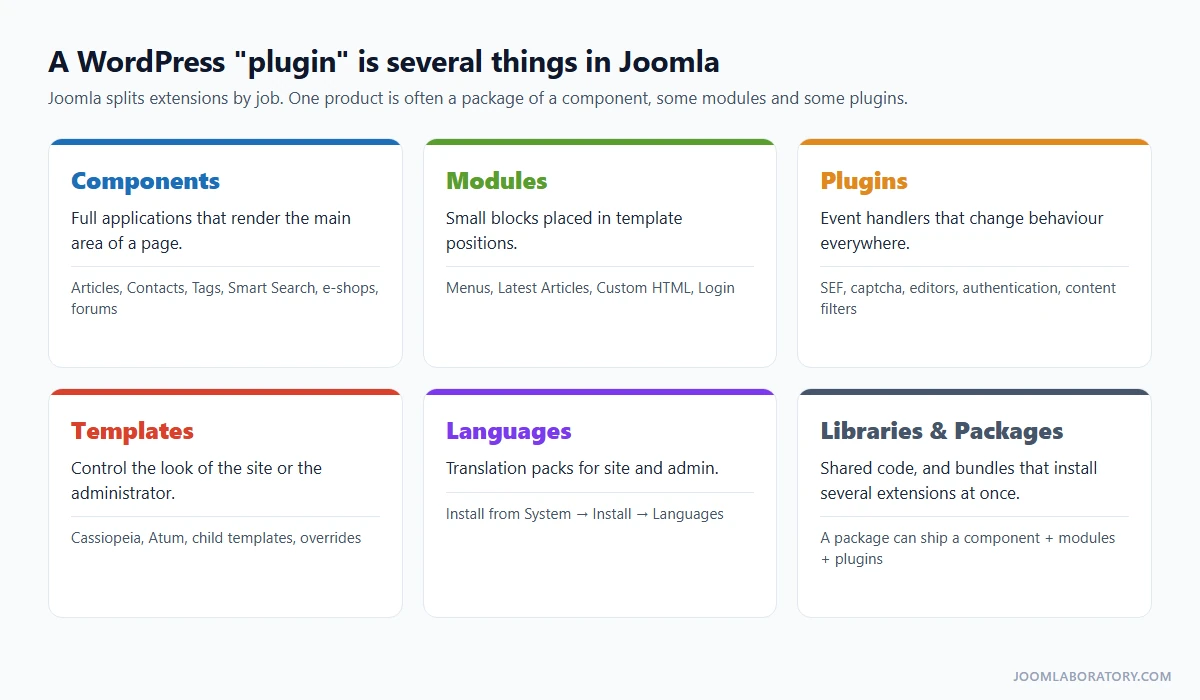
- Components render the main area of a page and usually have their own admin screens (articles, contacts, a shop, a forum).
- Modules are the blocks around the main area.
- Plugins react to events and change behaviour site-wide: editors, captcha, authentication, SEF URLs.
- Templates control the look, languages translate the interface, libraries hold shared code, and packages install several extensions at once.
- Find: the Joomla Extensions Directory (JED) is the equivalent of the WordPress.org plugin directory. Check compatibility with your Joomla version, the last update date and the reviews.
- Install: System → Install → Extensions, by uploading a ZIP, from a URL, or with Install from Web.
- Update: System → Update → Extensions. Extensions register an update site, so their updates appear here.
- Manage: System → Manage → Extensions, or System → Manage → Plugins for plugins only.
Before you look for an extension, check page 4 of this guide. Many WordPress plugins exist only to add something Joomla already has in core.
7. Templates instead of themes
Joomla 6 ships with Cassiopeia for the site and Atum for the administrator, both built on Bootstrap 5. Four features replace most theme-editing habits:
- Template styles: one template, several configurations (colours, fonts, layout). Assign a style to specific menu items to give a section its own look (System → Site Template Styles).
- Child templates: like child themes, they inherit everything and store only your changes. Use the Create Child Template button in the template's Details and Files screen.
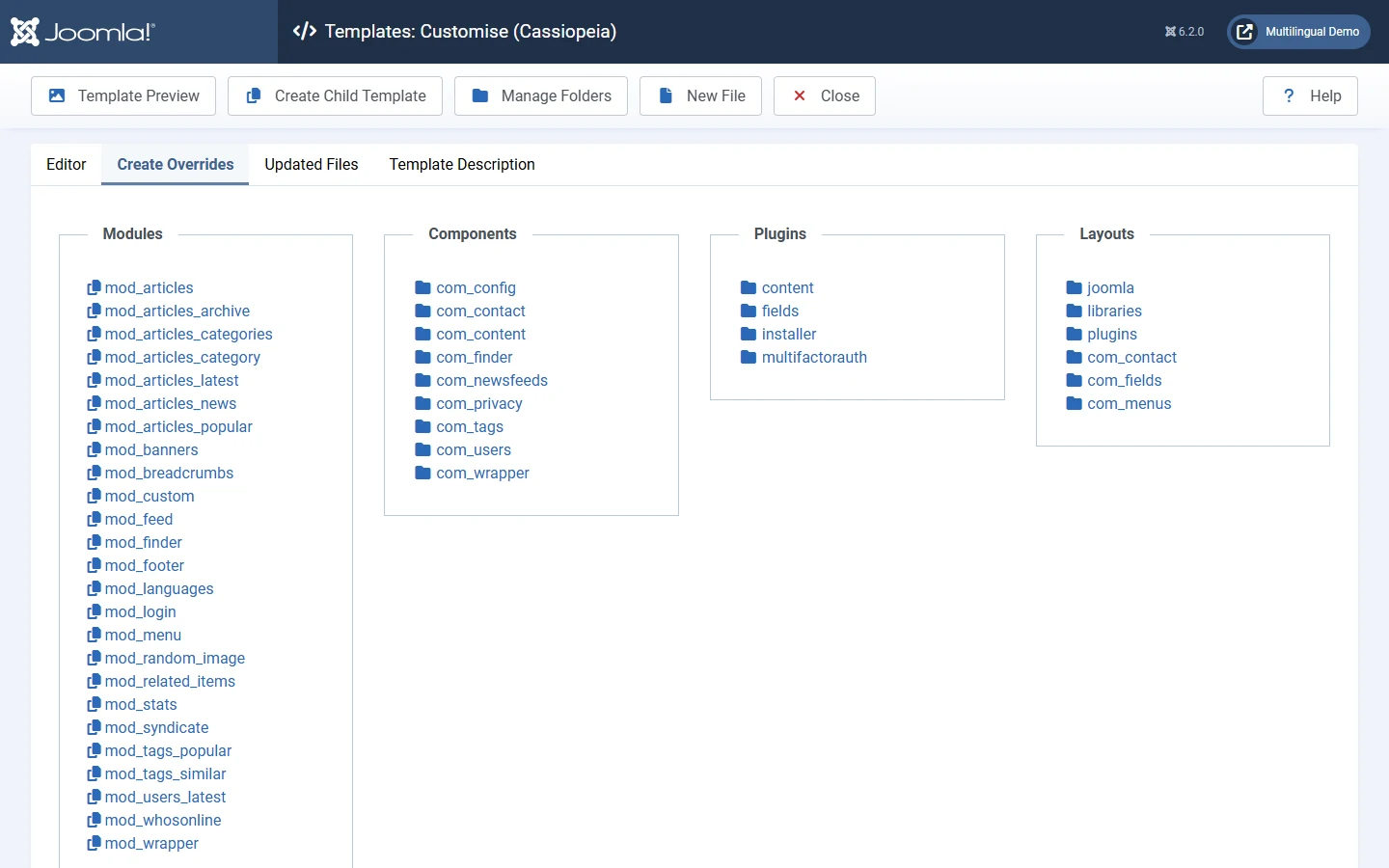
- Overrides: in the Create Overrides tab, click any module, component view or layout. Joomla copies its output file into your template. Edit the copy: updates never overwrite it, and Joomla tells you when the original has changed so you can review the difference.
- Quick tweaks: create
media/templates/site/cassiopeia/css/user.css(or the child template equivalent) and Cassiopeia loads it automatically.
8. What you get in core
A typical WordPress site adds plugins for multilingual content, roles, custom fields, redirects, two-factor login and search. In Joomla these ship with the CMS and are maintained by the same project:
| Feature | Joomla 6 core | Typical WordPress |
|---|---|---|
| Multilingual sites | Content languages, associations, language switcher, hreflang | Plugin (WPML, Polylang…) |
| Access control | Unlimited groups, access levels, per-item permissions | 5 default roles; more needs code or a plugin |
| Custom fields | 15+ field types, field groups, subforms | Basic custom fields; ACF or similar for more |
| Content workflows | Stages and transitions (opt-in) | Plugin |
| Multi-factor login and passkeys | TOTP, WebAuthn/passkeys, YubiKey, codes by email | Plugin |
| Site search | Smart Search index with stemming and filters | Basic search; plugin for more |
| Redirect manager | Redirects component that logs 404s | Plugin (core only redirects changed post slugs) |
| Scheduled tasks | Task Scheduler with interface and CLI | WP-Cron, no interface |
| Output overrides | Override any view, module or layout from the admin | Template files in a child theme |
| Structured data | Schema.org per article | SEO plugin |
| Contacts, banners, news feeds | Core components | Plugins |
| REST API | Web Services API with tokens | Core REST API |
| Automatic updates | Core patch and security updates, verified with TUF | Core minor and security updates |
To be fair, the last two rows are a draw: WordPress also has a REST API and automatic security updates in core. Our related guides: cron jobs and Scheduled Tasks and automatic updates in Joomla 6.
9. Users, groups and access levels
WordPress has five default roles (Administrator, Editor, Author, Contributor, Subscriber). Joomla's Access Control List separates two questions, and both are configured in the administrator:
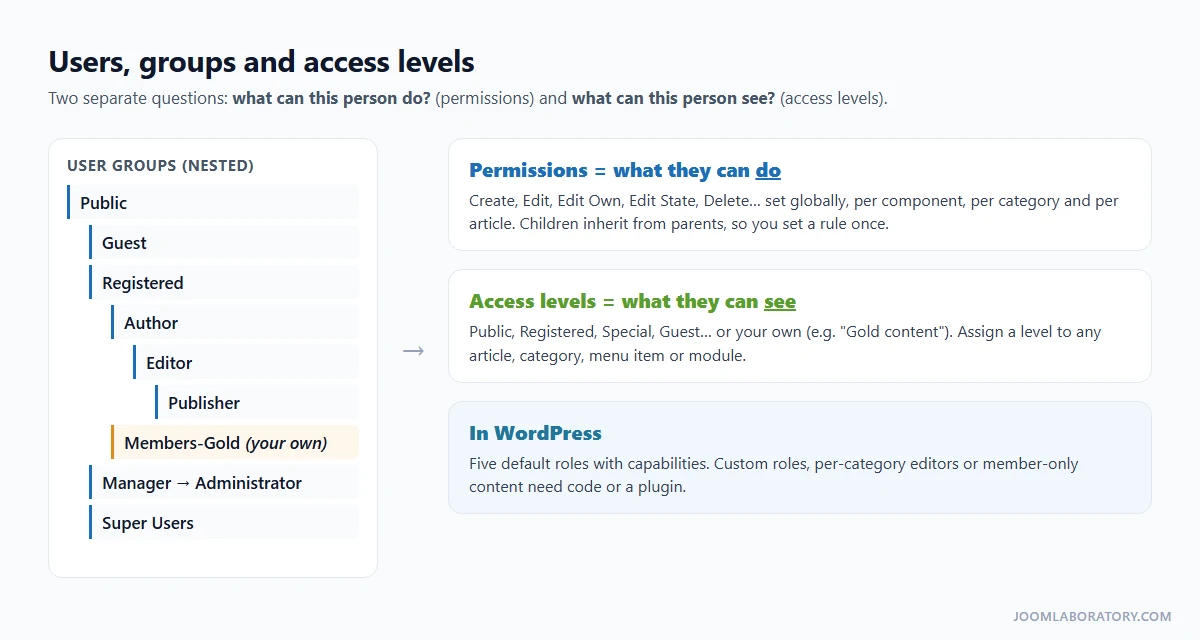
- User groups (Users → Groups) are nested, and child groups inherit their parent's permissions.
- Permissions answer "what can this person do?": create, edit, edit own, edit state, delete. Set them globally, then refine per component, per category and even per article.
- Viewing access levels (Users → Access Levels) answer "what can this person see?". Assign a level to any article, category, menu item or module.
A members-only area therefore needs no membership plugin: create a group, an access level for it, and set that level on the category, its menu item and its modules. For a real example, see how to let users edit only their own articles in specific categories.
10. Multilingual sites without a plugin
Where WordPress needs WPML or Polylang, Joomla runs multilingual sites in core: install the language packs, publish the content languages, enable the Language Filter plugin, give each language its own menu and Home page, link translations, and add a Language Switcher.
The details matter, so we wrote a separate guide with real Joomla 6.2 screenshots: How to Create a Multilingual Joomla Website: Step-by-Step Guide (Joomla 6).
11. Finding your way around the administrator
The Joomla back end lives at /administrator instead of /wp-admin:
| In WordPress | In Joomla 6 |
|---|---|
| Posts / Pages | Content → Articles |
| Posts → Categories | Content → Categories |
| Media | Content → Media |
| Appearance → Menus | Menus → Manage (and each menu by name) |
| Appearance → Widgets | Content → Site Modules |
| Appearance → Themes | System → Site Templates / Site Template Styles |
| Plugins → Add New | System → Install → Extensions |
| Plugins → Installed | System → Manage → Extensions (or Plugins) |
| Dashboard → Updates | System → Update → Joomla / Extensions |
| Users | Users → Manage |
| Settings → General | System → Global Configuration → Site |
| Settings → Reading (front page) | The menu item set as Default Page |
| Settings → Permalinks | Global Configuration → SEO Settings, plus menu item aliases |
| Comments | No core equivalent (see page 5) |
Tip: click Take a Tour in the administrator header for Joomla's built-in Guided Tours, such as "How to create articles" or "How to add menus". It is the fastest way to learn the screens.
Every component also has an Options button in its toolbar. That is where its global defaults live, for example how articles display by default.
12. Pros and trade-offs
Beyond the core features on the previous page, these are the advantages WordPress users notice most:
- Fewer moving parts. Features maintained by one project means fewer plugin conflicts and fewer separate updates to juggle.
- Structure that scales. Nested categories, menu-driven pages and per-page modules stay manageable on sites with hundreds of sections.
- Customisation that survives updates. Overrides and child templates keep your changes out of core files, and Joomla flags overrides whose originals changed.
- Community owned. Joomla is developed by volunteers under Open Source Matters, a non-profit. No single company controls it.
And what you give up:
- Smaller ecosystem. Far fewer extensions and templates. For a niche need you may find two options instead of twenty.
- Steeper first week. Menu items, module assignment and ACL take some getting used to. Plan training time for clients.
- No comments in core. You need an extension or an external service.
- No block editor in core. The default editor is TinyMCE. For Gutenberg-style building, use a page builder extension.
- Smaller talent pool. WordPress freelancers are easier to find. Factor that into long-term maintenance.
13. Migrating from WordPress
What moves cleanly, and what does not
WordPress exports its content as a WXR file (Tools → Export), and migration extensions on the JED can import it or read the WordPress database directly. Either way, expect three kinds of content:
- Moves cleanly: post and page text, categories, tags, authors, and media files (copy
wp-content/uploadsand check that image paths point to the new location). - Needs cleanup: shortcodes stay as plain
[shortcode]text; Gutenberg leaves<!-- wp:paragraph -->comments in the HTML; ACF values must be mapped to Joomla custom fields; SEO plugin titles and descriptions must be mapped to article meta fields; comments need a comments extension; and user passwords usually need a reset unless your migration tool handles WordPress password hashes. - Usually rebuilt: page-builder layouts (Elementor, Divi and others store them in their own format), the theme design, forms and shops.
Six steps
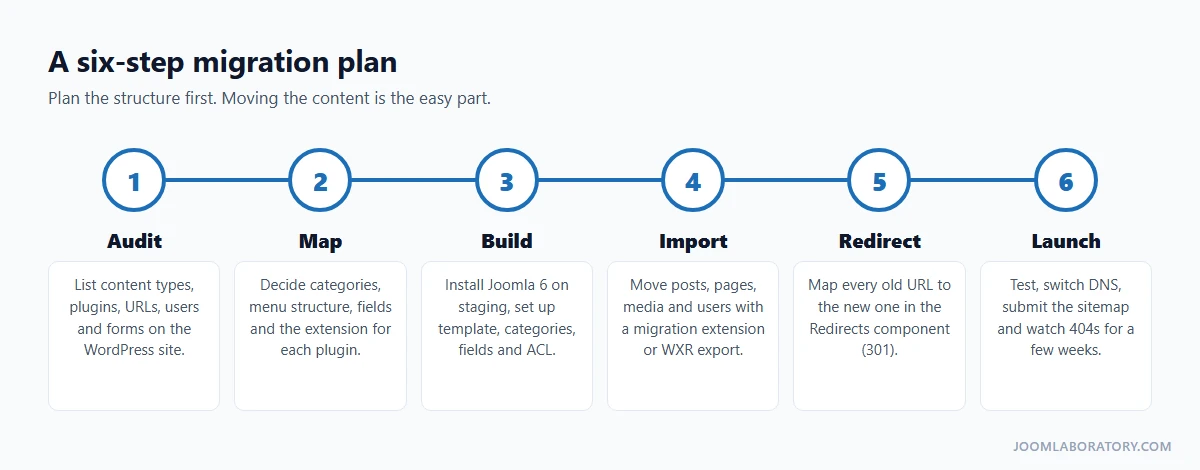
- Audit. List content types, active plugins, forms, user roles and every URL that gets traffic. Export the URL list from your sitemap or an SEO crawler.
- Map. Decide the category tree, the menu structure, the custom fields, and the Joomla core feature or extension that replaces each plugin.
- Build. Install Joomla 6 on a staging site and set up the template, categories, fields, user groups and access levels before importing anything.
- Import. Move the content, then clean up shortcodes, block comments and image paths.
- Redirect. Map every old URL to its new one, for example
/2026/11/my-post/→/blog/my-post. Add the 301 redirects in Components → Redirects and enable the System - Redirect plugin with Collect URLs on, so missed URLs show up as 404s. - Launch. Test forms, permissions and languages, switch the domain, submit the new sitemap, and check the Redirects list for new 404s every few days for the first weeks.
Do not skip step 5. Lost rankings after a CMS switch almost always come from missing redirects, not from the CMS itself.
14. FAQ
Is Joomla free?
Yes. Like WordPress, Joomla is free and open source under the GNU GPL. Extensions and templates can be free or commercial.
Can Joomla run an online shop?
Yes, with an e-commerce extension, the way WooCommerce works for WordPress. Popular options include J2Commerce, HikaShop, VirtueMart and Phoca Cart.
Is there a page builder like Elementor?
Not in core, but several exist as extensions, for example YOOtheme Pro, SP Page Builder and Gridbox. Many sites do well with Cassiopeia, modules and a few overrides instead.
How do I back up a Joomla site?
Joomla has no backup tool in core. Akeeba Backup is the widely used extension for full-site backups and restores. Your host's backups are a useful second layer.
What about caching?
Joomla has built-in caching: Conservative or Progressive caching in Global Configuration → System, and the System - Page Cache plugin for full-page caching. Server-level caching, such as LiteSpeed, works on top.
Is Joomla good for SEO?
Yes: search-engine-friendly URLs, meta data per article and per menu item, Schema.org structured data and a redirect manager are in core. For XML sitemaps you add an extension.
Do I need to know PHP?
No. You can build and run a Joomla site entirely from the administrator. PHP helps for overrides and your own extensions.
Where do I start?
Install Joomla 6 locally or on a test subdomain, click Take a Tour, then do the five-minute About page exercise from page 2. If you are completely new, start with I want to build a website with Joomla CMS. Where should I start?
Conclusion
Moving from WordPress to Joomla is mostly a change of vocabulary plus one new idea: menu items decide how and where content appears. Once that clicks, you get a CMS that handles multilingual content, fine-grained permissions, custom fields, workflows and secure logins without a stack of plugins. The ecosystem is smaller and the first week is steeper, but for structured, multilingual or permission-heavy sites, Joomla lets you build more with less.