
Who this guide is for
By the end of this guide you will be able to add a block of content to any area of a Joomla 6 website, choose which pages show it, and keep it tidy afterwards. You do not need to know HTML, PHP or any other CMS. If you can fill in a web form and click Save, you can do everything here.
Key ideas first
A module is a small, self-contained box of content that sits around the edges of your pages: a menu, a login form, a list of latest news, a block of contact details. Understanding that one sentence is most of the battle.
The house analogy
Think of a web page as a room in a house:
- The template is the architecture: walls, windows, colours, and where the shelves are.
- The positions are the shelves: named spots the template provides, such as a top bar, a sidebar or a footer.
- The modules are the objects you put on those shelves: a clock, a photo frame, a notice board.
- The main content (an article, a contact form, a shop page) is the big table in the middle of the room.
You can move objects between shelves, put the same object in several rooms, or remove it from some rooms only. That is exactly what you do with modules.
Modules vs other Joomla building blocks
|
Building block |
What it is |
Where it shows |
Example |
|---|---|---|---|
|
Article |
A piece of written content |
The main area of a page |
"About us" text |
|
Component |
The engine that produces a page's main content |
The main area, one per page |
Articles, Contacts, an online shop |
|
Menu item |
A link that creates a page and decides what the component shows there |
Defines the page itself |
"Home", "Blog", "Contact" |
|
Module |
A small box of content beside the main area |
Template positions, many per page |
Login form, latest news, footer text |
|
Plugin |
Hidden code that changes how things behave |
Usually invisible |
Spam protection, SEO tweaks |
|
Template |
The design and layout of the whole site |
Everywhere |
Finding the Modules screen
All module work happens in one list called Modules: Site, reached from the left-hand menu of the Administrator.
- Go to
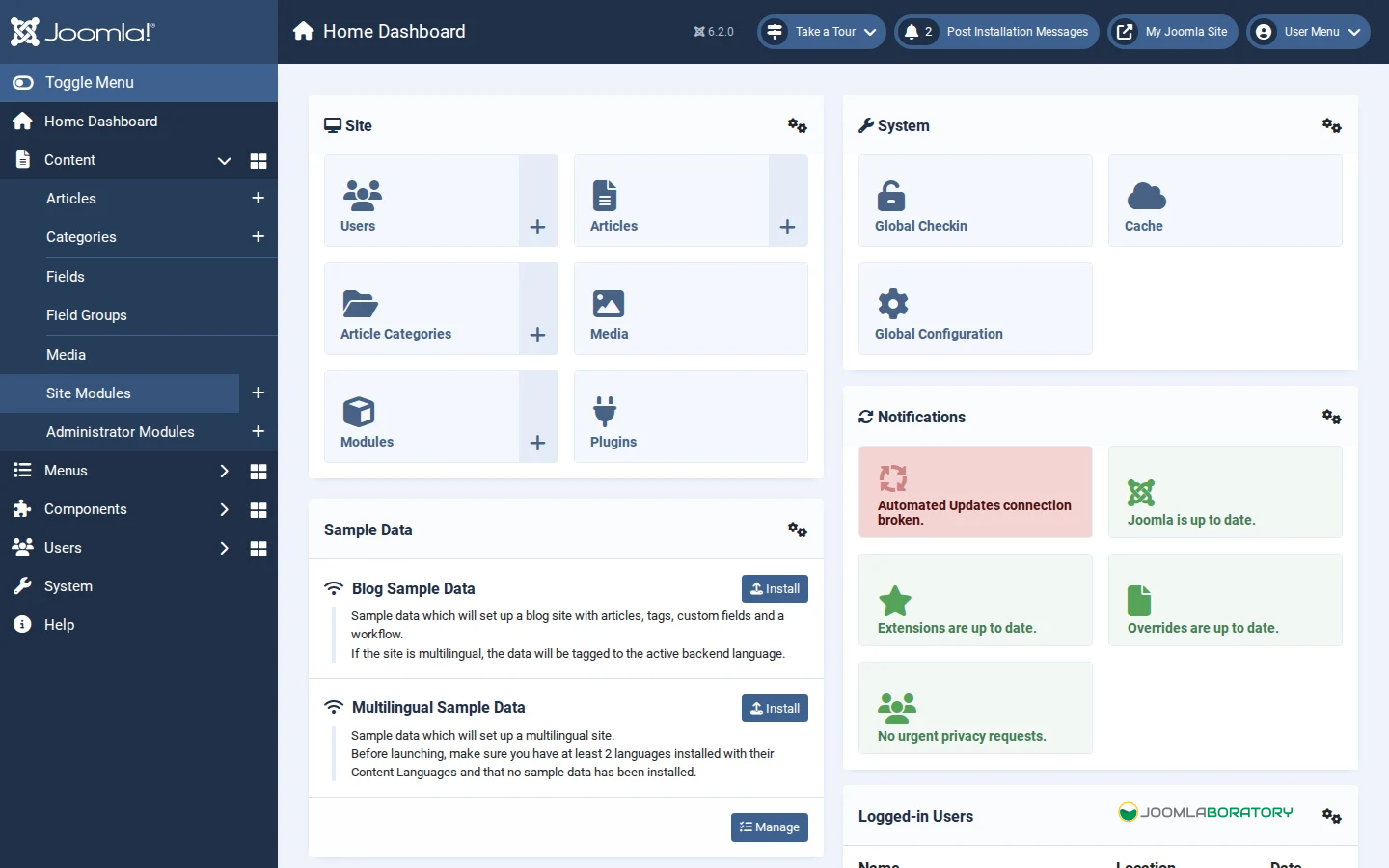
https://yoursite.com/administratorand log in. - You land on the Home Dashboard. The dark menu on the left is your main navigation.
- Click Content, then Site Modules. (You can also get there through System → Manage → Site Modules.)
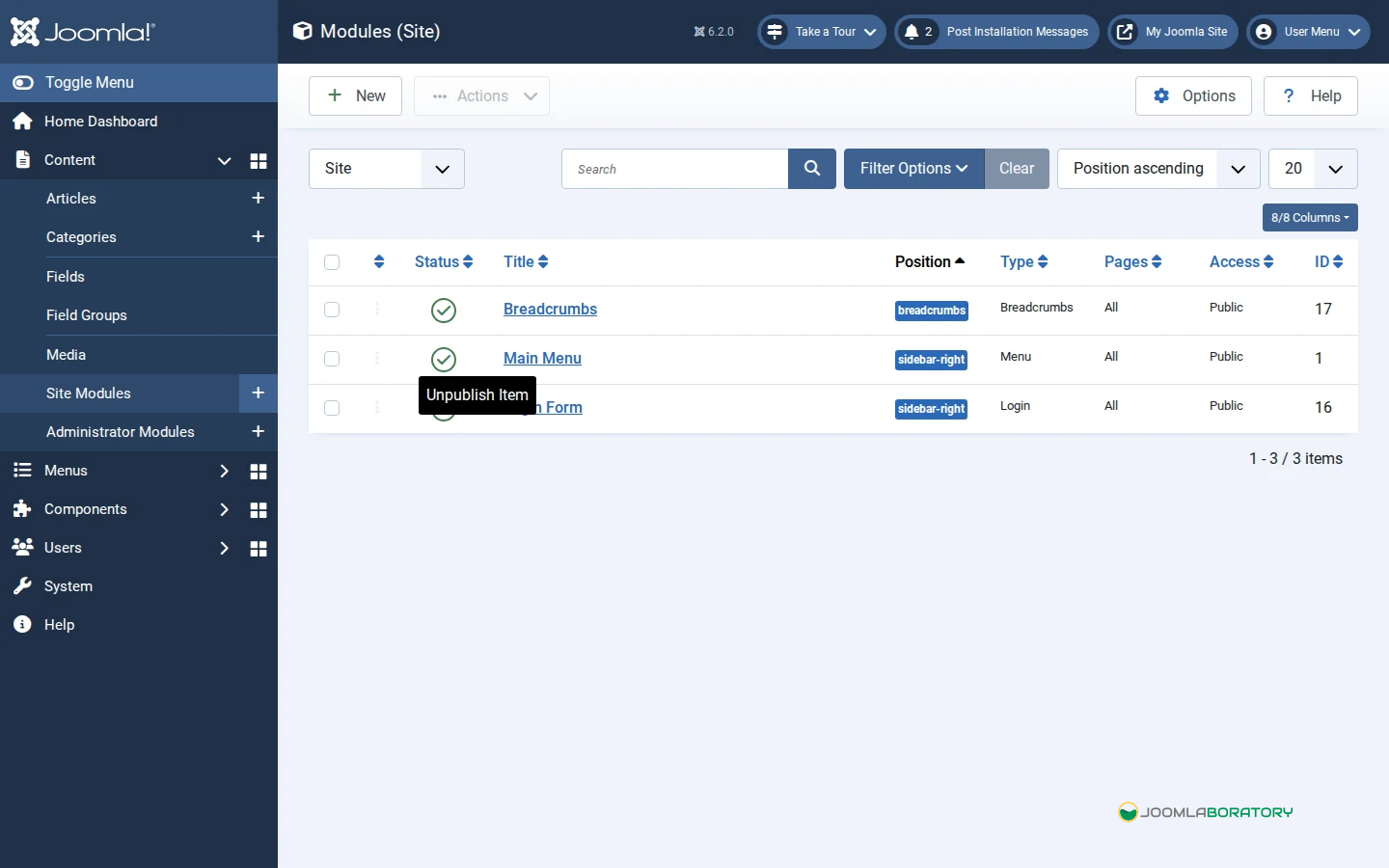
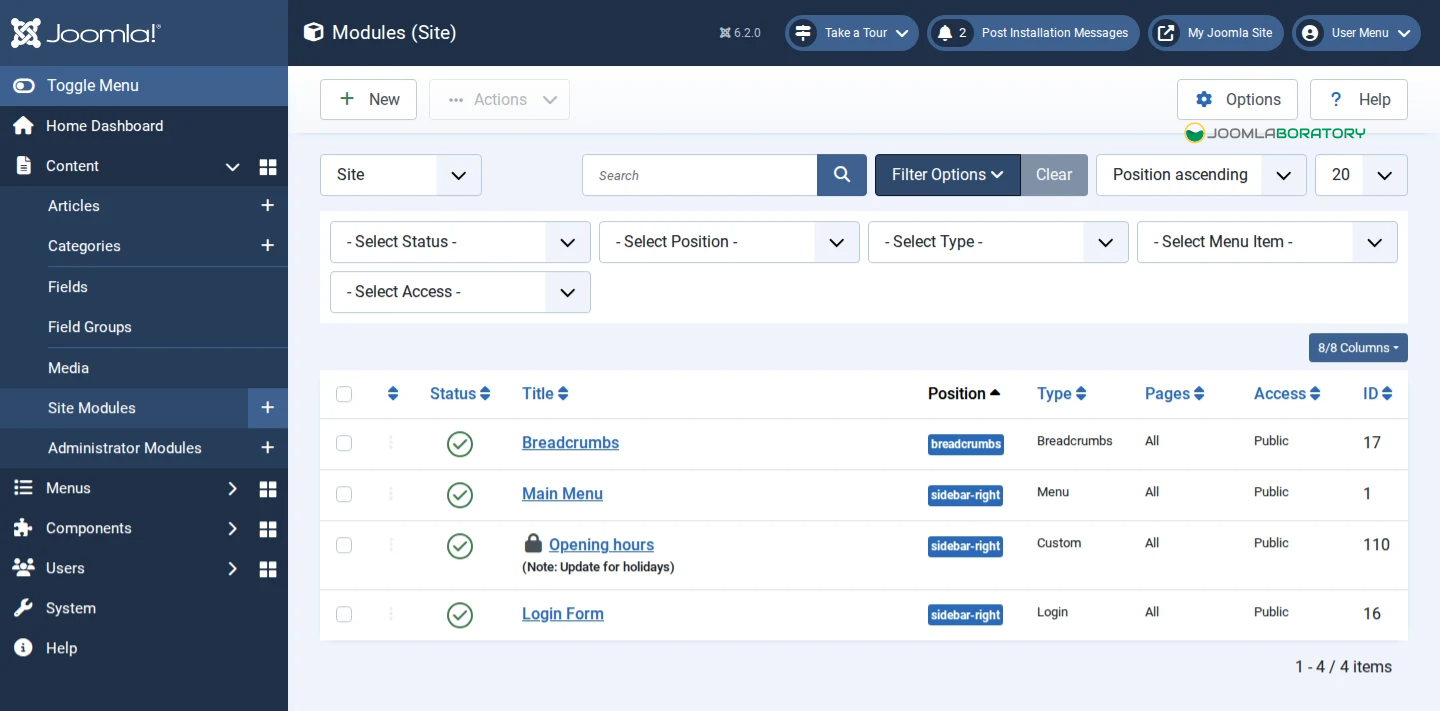
- You now see a table of every module on the site, with columns for Status, Title, Position, Pages, Access and more.
Site modules vs Administrator modules
Near the top of the list there is a drop-down that switches between Site and Administrator.
- Site modules appear on the public website. This is what you want 99% of the time.
- Administrator modules are the boxes on your own control panel (the dashboard panels, the admin menu). Leave these alone until you are comfortable.
If the list looks strangely empty or full of thinFinding the Modules screengs like "Logged-in Users" and "Popular Articles", check this switch first.
Reading the list
- A green tick in the Status column means the module is published (live); a grey cross means unpublished (hidden).
- Position shows which shelf it sits on. "None" means it has no position and will not appear anywhere.
- Pages shows whether it appears on All pages, None, or Selected pages.
- A padlock next to a title means someone (maybe you, in another tab) has the module open for editing. More on this in Managing your modules.
Adding your first module, step by step
We will add an "Opening hours" box to the sidebar of every page using the Custom module, which simply holds text and images you type yourself.
1. Choose the module type
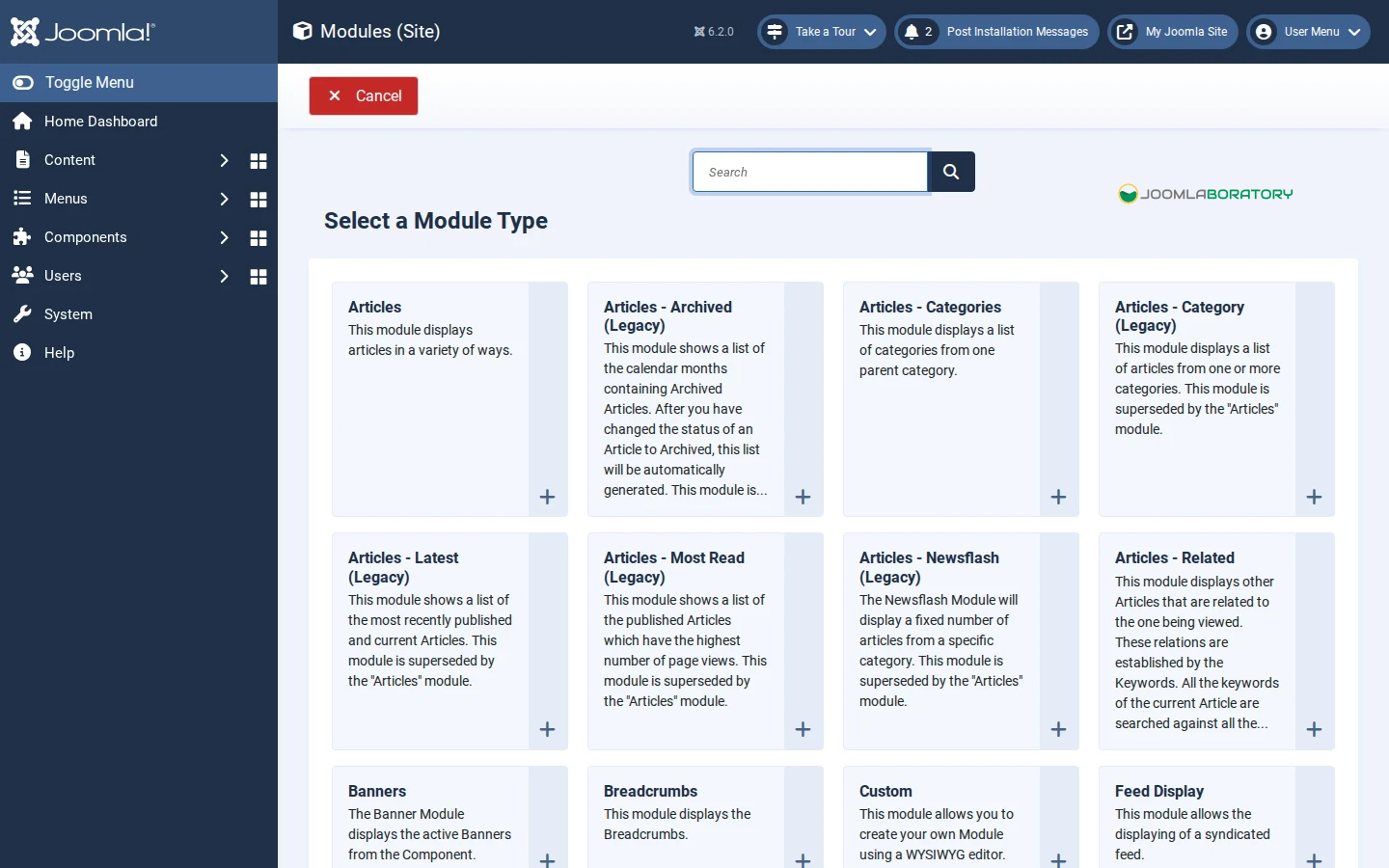
- In Content → Site Modules, click the green New button at the top left.
- Joomla shows a grid of module types (one card per type). Use the search box to type
custom. - Click the Custom card. The editing screen opens.
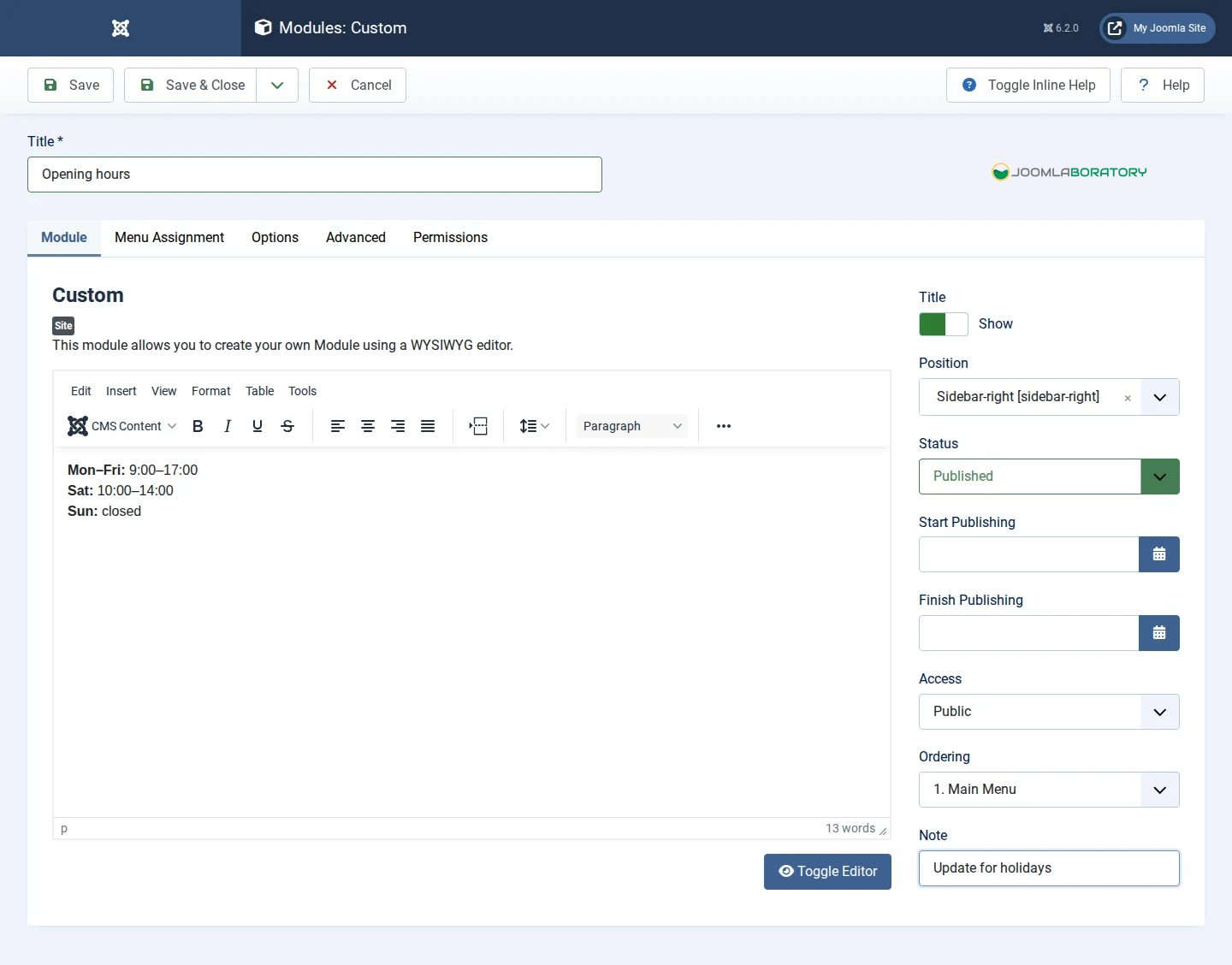
Our example filled in: content in the editor on the left, Title, Position, Status and Access on the right. The Language field only appears on multilingual sites.
2. Fill in the Module tab
|
Field |
What it does |
What to enter for our example |
|---|---|---|
|
Title |
The name of the module, shown above it on the site and in the admin list |
Opening hours |
|
Custom Content (editor) |
The text, images or links the box will show |
Mon–Fri 9:00–17:00, Sat 10:00–14:00 |
|
Show Title |
Whether visitors see the title above the box |
Show |
|
Position |
The template shelf the module sits on |
sidebar-right |
|
Status |
Published = live, Unpublished = hidden, Trashed = in the bin |
Published |
|
Start / Finish Publishing |
Optional dates to show the module only for a period |
Leave empty |
|
Access |
Which visitors can see it (Public = everyone) |
Public |
|
Ordering |
Its place among other modules in the same position |
Leave as is for now |
|
Language |
Only matters on multilingual sites |
All |
|
Note |
A private reminder for admins, never shown on the site |
"Update for holidays" |
To pick a position, click the Position field and either choose from the list (positions are grouped under your template's name, such as Cassiopeia) or type the position name.
3. Set the Menu Assignment tab
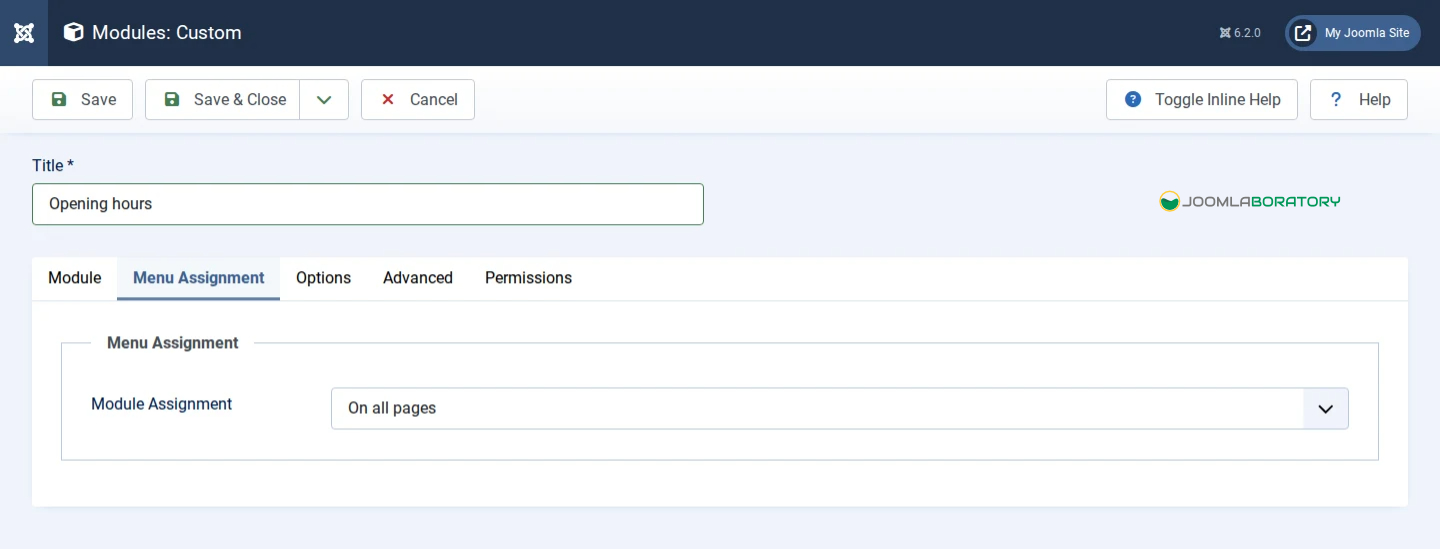
Click the Menu Assignment tab and set Module Assignment to On all pages. Without this step the module is published but appears on no page at all, the most common beginner mistake.
4. Save and check
- Click Save & Close.
- Switch to your public website tab and refresh the page (Ctrl+F5 / Cmd+Shift+R to be sure).
- You should see "Opening hours" in the right-hand sidebar.
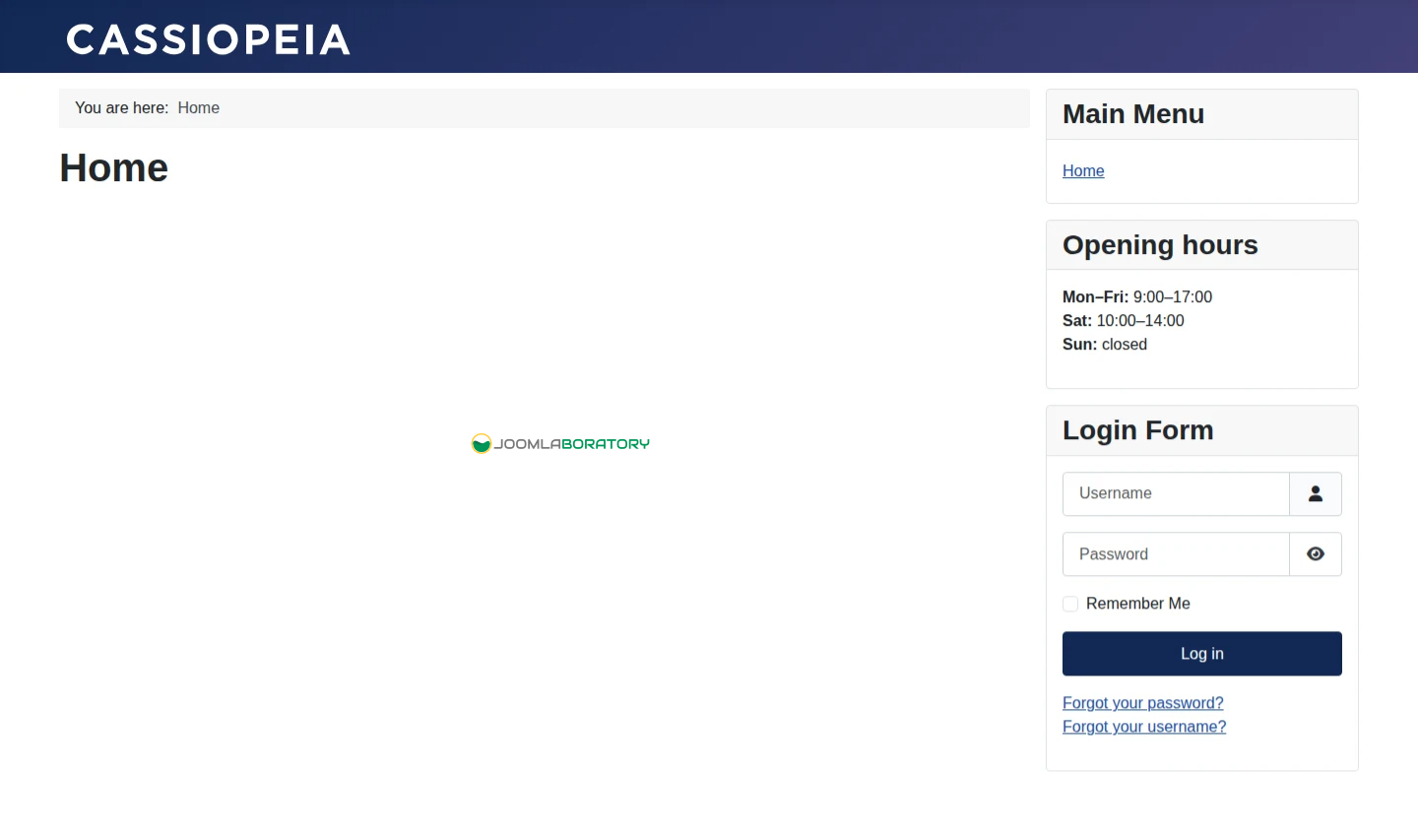
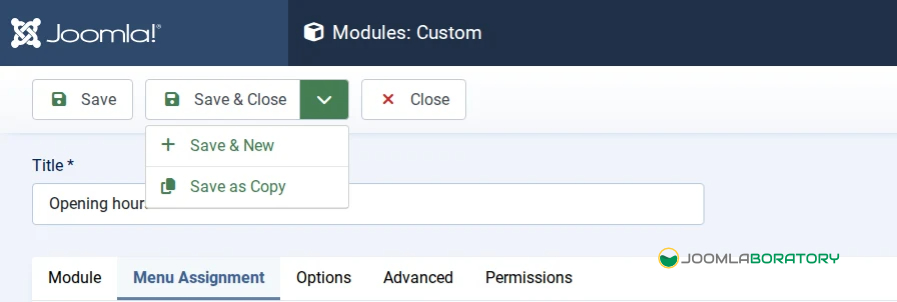
The buttons at the top of the edit screen
- Save stores your changes and keeps the screen open.
- Save & Close stores them and returns to the list.
- Save & New stores them and opens a fresh module of the same type.
- Save as Copy creates a duplicate and leaves the original untouched.
- Close leaves without saving. Always use it rather than the browser's Back button, or the module stays locked (see Managing your modules).
To pick a position, click the Position field and either choose from the list (positions are grouped under your template's name, such as Cassiopeia) or type the position name.
Choosing where a module appears
Two settings decide where a module shows: its Position (where on the page) and its Menu Assignment (on which pages). Both must be right for the module to appear.
Positions: where on the page
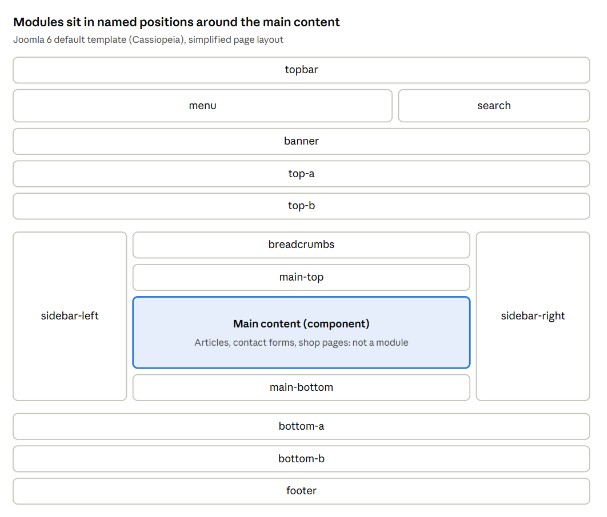
Position names come from your template, so they differ from site to site. Joomla 6's default template, Cassiopeia, offers positions such as topbar, menu, search, banner, top-a, top-b, main-top, main-bottom, breadcrumbs, sidebar-left, sidebar-right, bottom-a, bottom-b and footer. The map below shows roughly where each sits.
See the positions on your own site
Instead of guessing, ask Joomla to label the shelves for you:
- Go to System → Site Templates.
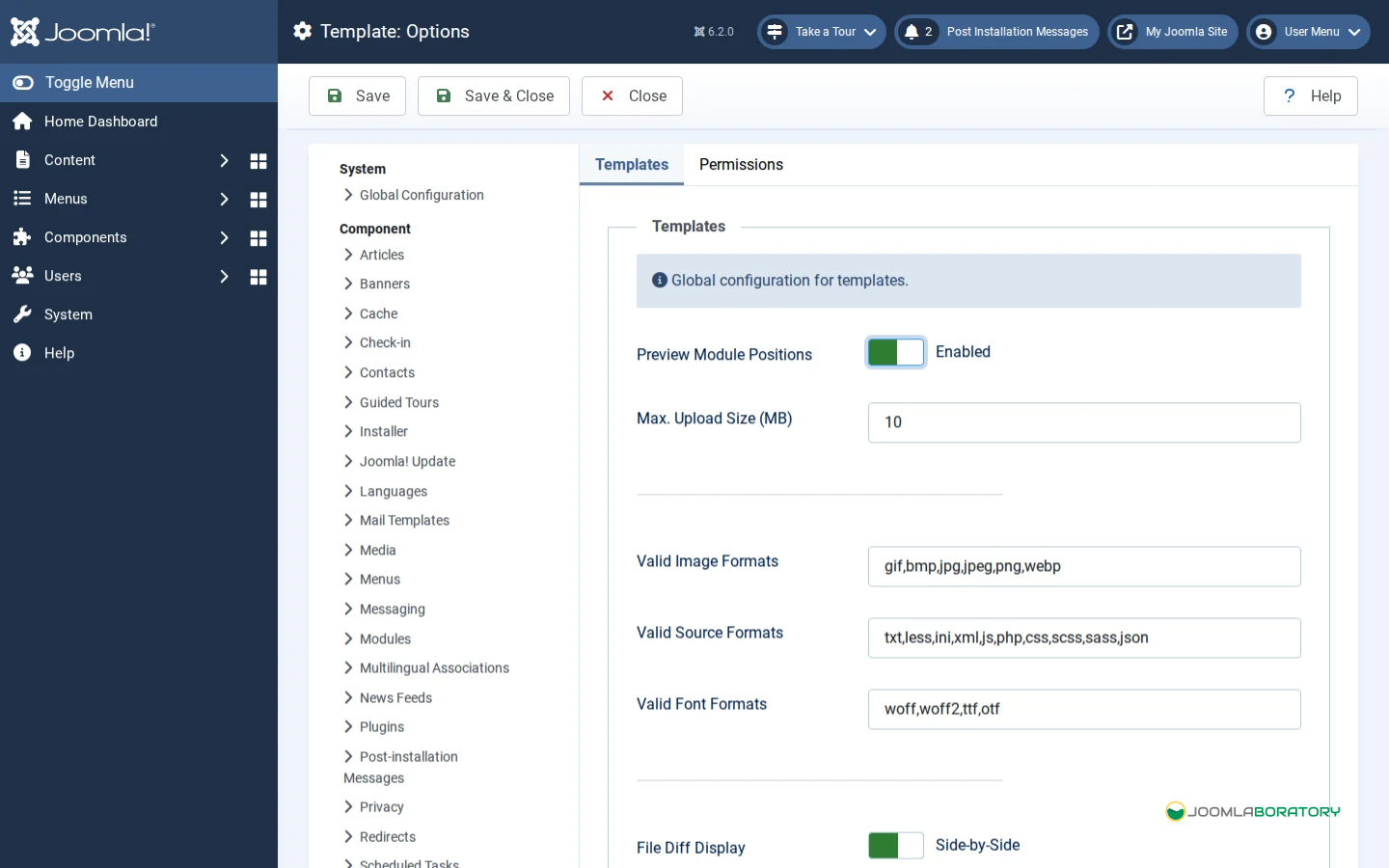
- Click the Options button at the top right.
- Set Preview Module Positions to Enabled and click Save & Close.
- Visit your site with
?tp=1added to the address, for examplehttps://yoursite.com/?tp=1. - Every position now shows as a labelled box. Note the names you want, then set the option back to Disabled when you are done.
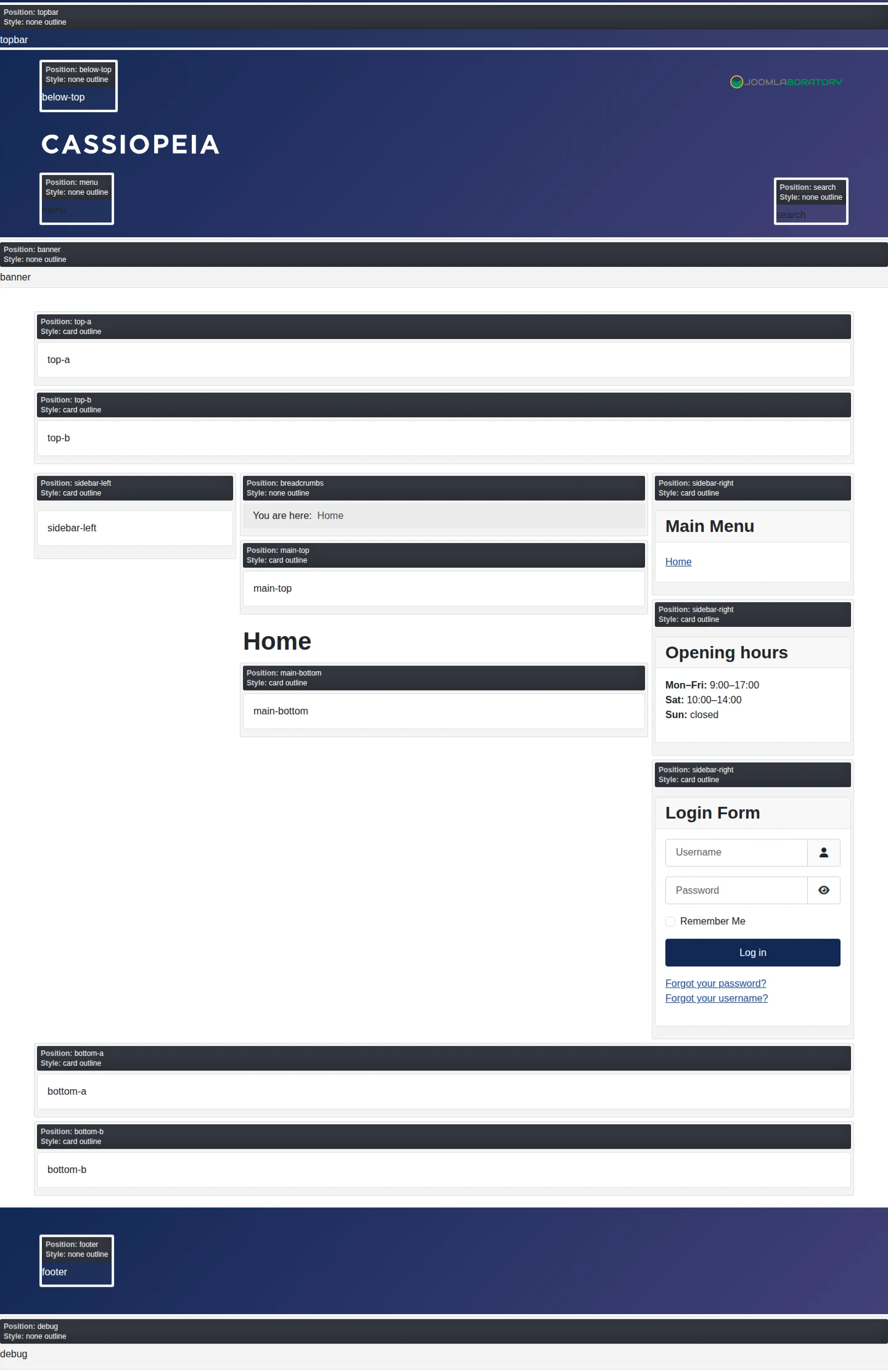
If you use a custom or commercial template, this is the only reliable way to learn its position names.
Menu Assignment: on which pages
On the Menu Assignment tab, the Module Assignment drop-down has four choices:
|
Choice |
Result |
Typical use |
|---|---|---|
|
On all pages |
Shows on every page of the site |
Main menu, footer, contact details |
|
No pages |
Shows nowhere (but stays published) |
Parking a module you'll use later |
|
Only on the pages selected |
Shows only on the menu items you tick |
A "Special offer" box on the Shop page only |
|
On all pages except those selected |
Shows everywhere except the ticked items |
Hiding a sidebar on the Home page |
With the last two choices, a list of all your menus appears. Tick the menu items (pages) you want, or use the All / None buttons beside each menu to tick a whole menu at once.
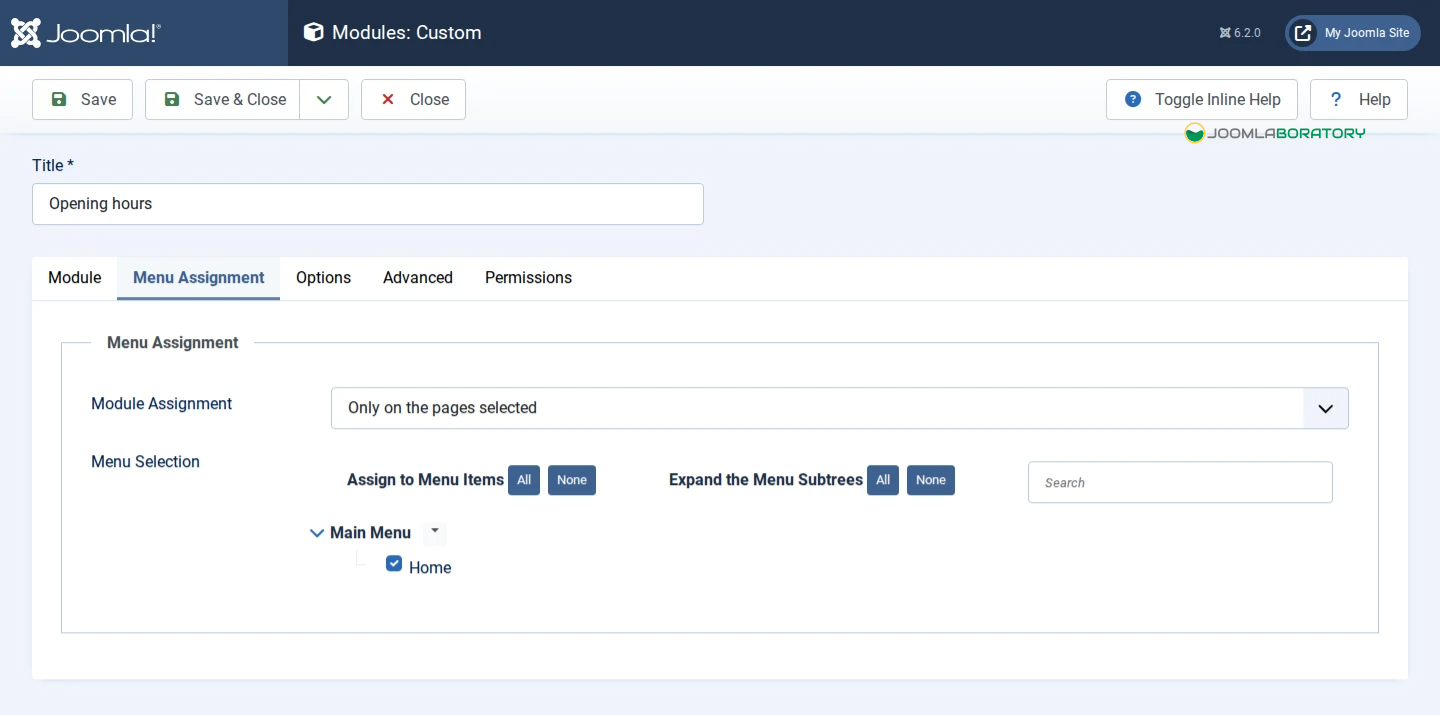
Remember: a page only exists for Menu Assignment if it has a menu item. A page reached by clicking a link inside an article usually inherits the menu item it was opened from.
Module types you will use most
Joomla 6 ships with a few dozen module types; these are the ones beginners reach for first. You find each one by clicking New in the Modules list and searching for its name.Menu Assignment: on which pages
|
Module type |
What it shows |
Good for |
|---|---|---|
|
Custom |
Any text, images, links or embedded code you write in the editor |
Contact details, opening hours, a promo box, a map embed |
|
Menu |
The links of one of your menus |
Main navigation, footer links, a sidebar menu |
|
Breadcrumbs |
The "You are here: Home › Blog › Article" trail |
Helping visitors find their way back |
|
Articles |
A list of articles chosen by category, date or popularity |
"Latest news", "Most read", "Featured" lists |
|
Login |
A username/password form for site members |
Member areas, intranets |
|
Smart Search |
A search box |
Site search in the header |
|
Random Image |
One image picked at random from a folder |
A changing photo in the sidebar |
|
Language Switcher |
Flags or names to switch language |
Multilingual sites |
|
Feed Display |
Headlines from another website's RSS feed |
Showing industry news |
|
Banners |
Rotating adverts managed in Components → Banners |
Sponsor logos |
|
Footer |
A simple copyright line |
The bottom of the page |
About the Menu module: creating a menu (in Menus → Manage) does not show it on the site. You must also create a Menu module, pick that menu in it, and give it a position. The "Add a module for this menu" link on the Menus screen does this for you.
About the Articles module: older Joomla versions had separate modules for Latest, Most Read, Category and so on. Recent versions combine these into one Articles module with options for which articles to list and how to order them. You may still see the older types listed; either works.
Managing your modules
Once a site has more than a handful of modules, the list's filters, toolbar buttons and ordering tools keep it under control.
Everyday actions
|
I want to… |
How |
|---|---|
|
Edit a module |
Click its title in the list |
|
Hide it quickly |
Click its green tick in the Status column (it turns into a grey cross) |
|
Show it again |
Click the grey cross |
|
Copy it |
Tick its checkbox, then Actions → Duplicate. The copy is unpublished with "(2)" in the title |
|
Move several modules to another position |
Tick them, then Actions → Batch and choose the new position |
|
Delete it |
Tick it, Actions → Trash. To delete permanently, filter by Status: Trashed, tick it and click Empty Trash |
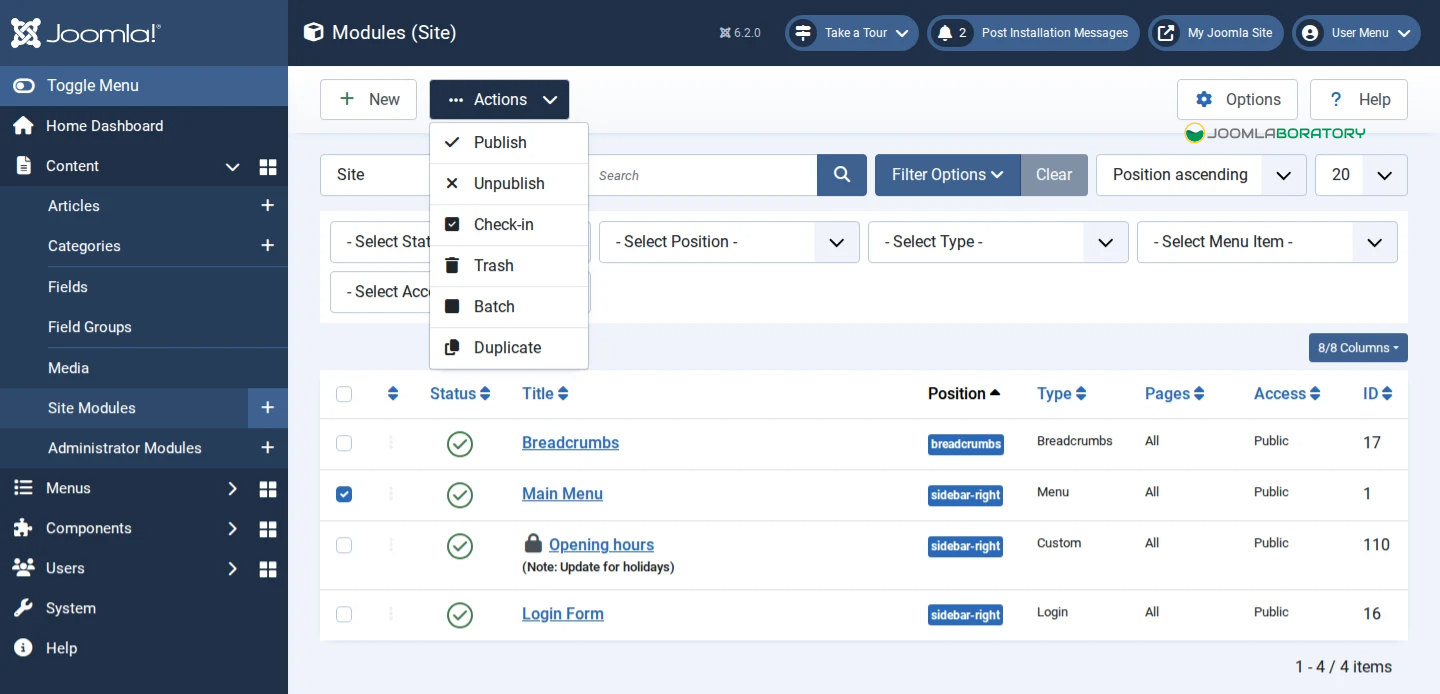
Unpublishing is safer than trashing: the module and all its settings stay, ready to switch back on.
Finding things in a long list
Click Filter Options to narrow the list by Position, Status, Module type, Access level or Language. Use the search box for titles. Click Clear to remove all filters. Forgotten filters are a classic reason for "my module has disappeared".
Changing the order inside a position
When several modules share a position, they stack in order. To reorder:
- Filter the list by that position.
- Click the small arrow at the top of the first column (the ordering column) to enable drag mode.
- Drag modules up or down by the handle (≡) on the left.
Alternatively, open a module and change its Ordering field.
Scheduling
Use Start Publishing and Finish Publishing to show a module only for a period, such as a Christmas notice from 1 to 31 December. The module switches itself on and off; you do nothing on the day.
Who can see it: Access levels
|
Access level |
Who sees the module |
|---|---|
|
Public |
Everyone |
|
Guest |
Only visitors who are not logged in (e.g. a "Sign up" box) |
|
Registered |
Only logged-in users (e.g. a "My account" menu) |
|
Special |
Authors, editors and administrators logged in on the site |
|
Super Users |
Only super users |
Locked modules (the padlock)
When someone opens a module, Joomla locks ("checks out") it so two people can't overwrite each other. If you leave with the browser's Back button or close the tab, the lock stays. Click the padlock icon to unlock it, or use System → Global Check-in to release all locks at once.
Adding new module types (extensions)
When the built-in types aren't enough (a slideshow, a weather box, a social feed), you install an extension that adds a new module type. After installation it appears in the New grid like any other type.
Option A: Install from Web
- Go to System → Install → Extensions.
- Open the Install from Web tab (the first time, click to enable it).
- Search the Joomla Extensions Directory (JED), open an extension, check it supports Joomla 6, and click Install.
Option B: Upload a package file
- Download the extension's
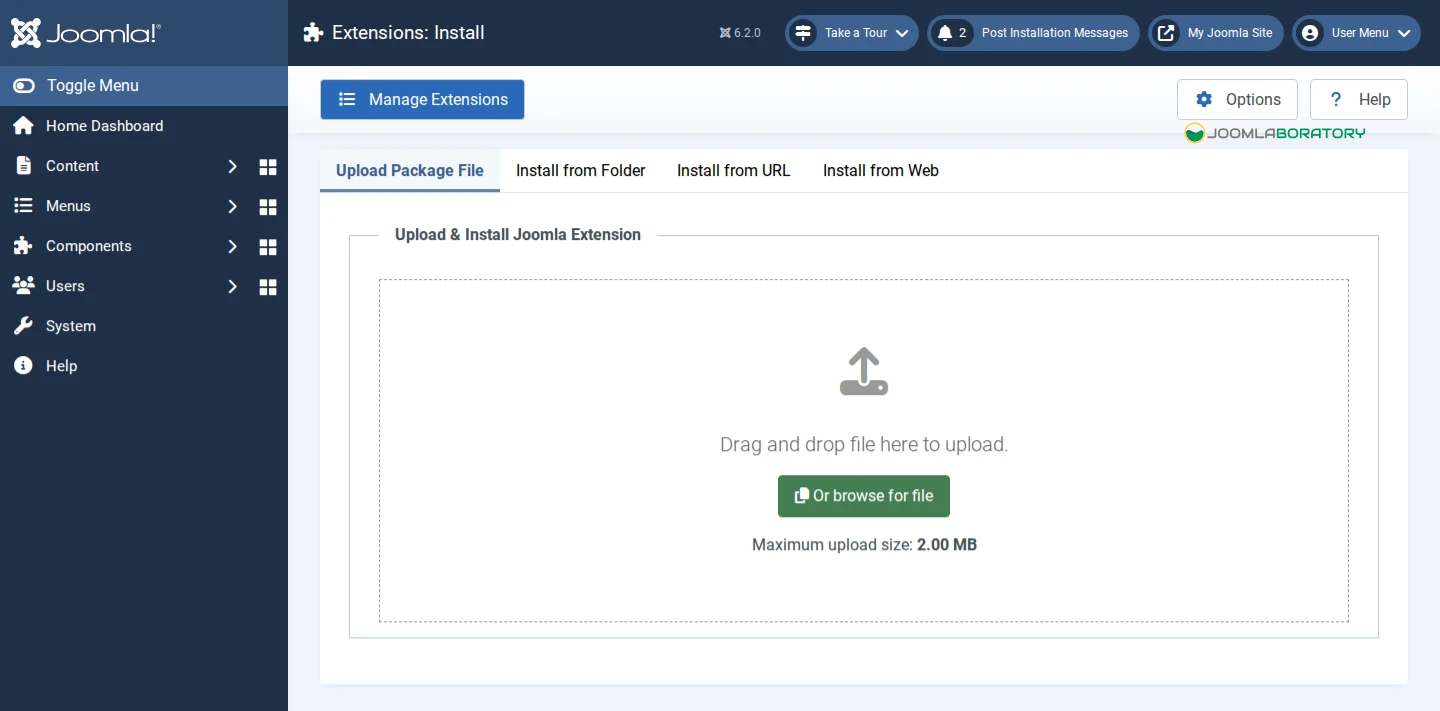
.zipfile from the developer's website. - Go to System → Install → Extensions and open the Upload Package File tab.
- Drag the
.ziponto the box. Joomla shows a success message when it's done.
Some packages install a module directly; others install a component that adds modules too. Read the success message: it usually tells you where to find the new feature.
Staying safe
- Back up first. Take a full backup before installing anything new.
- Check compatibility. The listing should say "Joomla 6". Extensions built only for Joomla 3 will not work.
- Prefer well-known sources. Choose extensions listed on the JED, updated recently, with good reviews.
- Never install "nulled" or pirated paid extensions. They are a common way websites get hacked.
- Keep extensions updated via System → Update → Extensions, and uninstall ones you no longer use (System → Manage → Extensions).
Going a little further
These four techniques are optional, but each solves a common need once you have the basics.
Put a module inside an article
Sometimes you want a module in the middle of your text, for example a contact box inside an "About us" article.
- Edit the article.
- Place the cursor where the module should go.
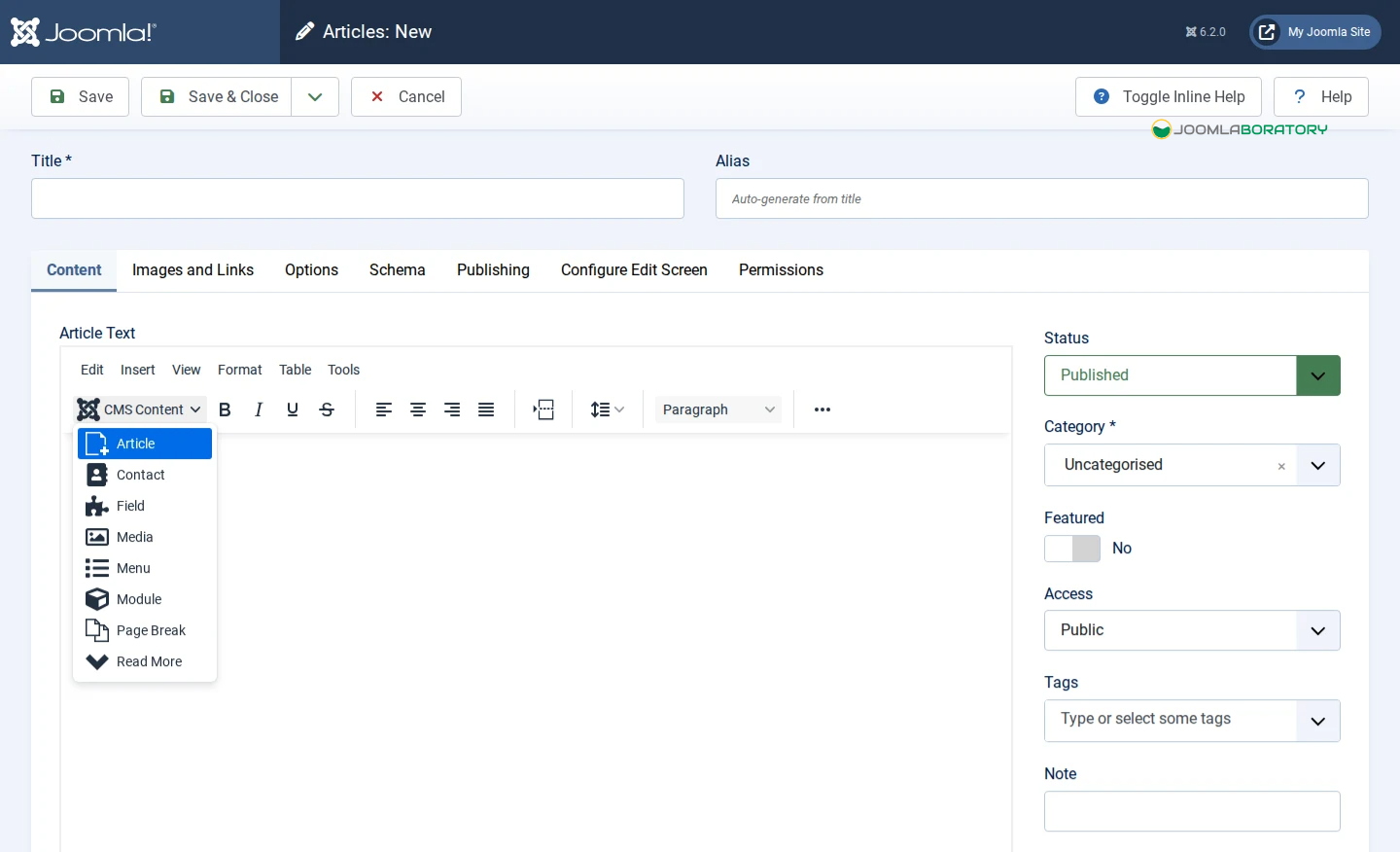
- In the editor toolbar, open CMS Content → Module and pick the module from the list.
- Joomla inserts a short code such as
. Save, and the module appears there.
You can also type the codes yourself: loads every module in a position, and loads a module by type and title. A handy trick is to give a module an invented position name like about-contact that your template doesn't use, then load it with .
Change how a module looks (Advanced tab)
- Layout: some modules offer alternative designs (for example a horizontal or vertical menu).
- Module Class: adds a CSS class name so a designer can style this one box differently.
- Module Style: the outer "frame" the template wraps around the module, such as a card with a heading or no frame at all.
- Header Tag: whether the title is an H3, H4 and so on. Keep headings in a sensible order for accessibility and SEO.
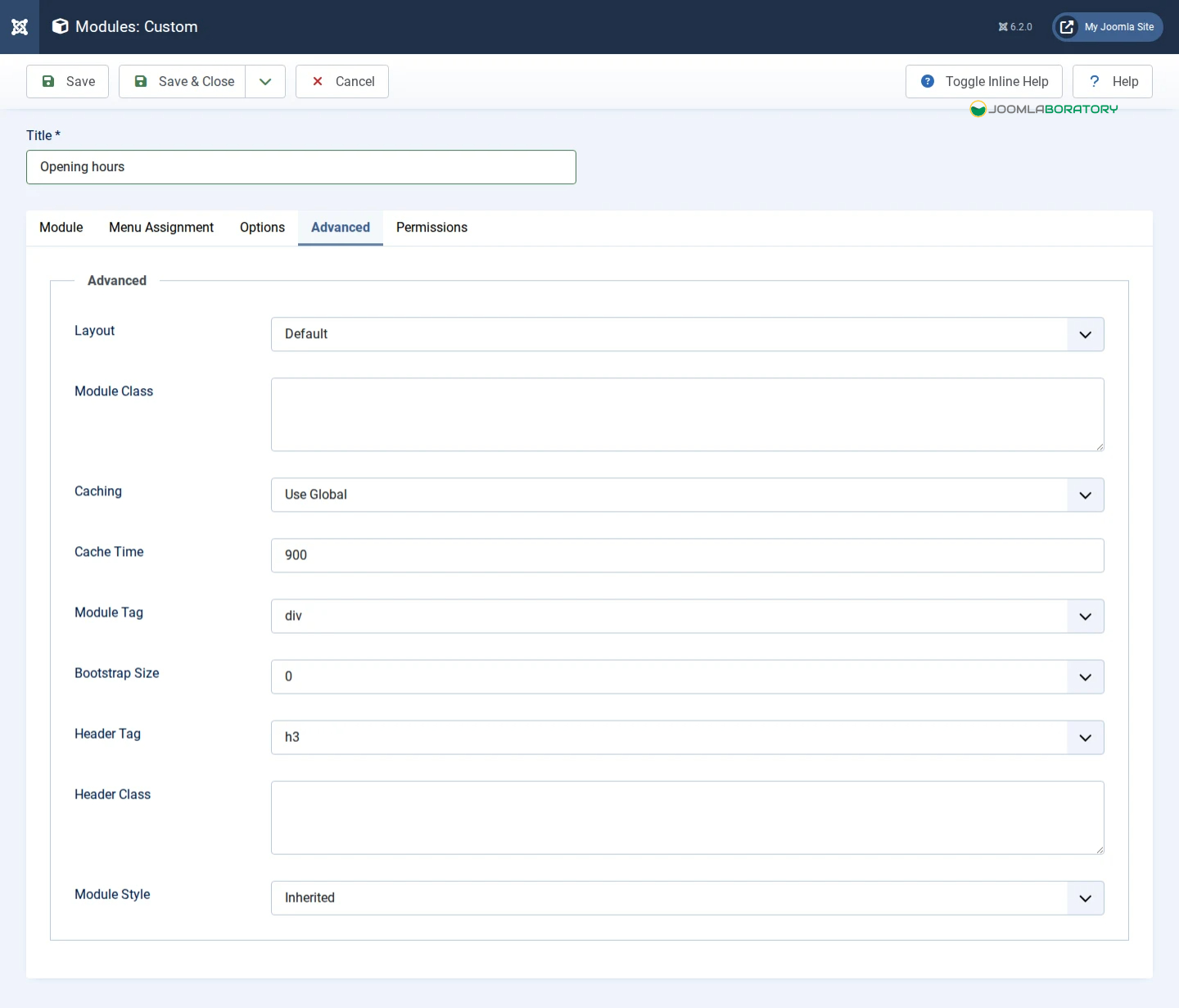
Caching
On the Advanced tab, Caching set to Use Global lets Joomla store the module's output to load pages faster. If you edit a module and the site still shows the old version, clear the cache in System → Clear Cache.
Edit modules from the front end
In System → Global Configuration → Site, set Frontend Editing to Modules (or Modules & Menus). Logged-in administrators then see an edit icon when hovering over a module on the public site, so you can fix a typo without opening the Administrator.
Troubleshooting: "My module doesn't show up"
Nine times out of ten the cause is one of the first three checks below. Work down the list in order.
- Is it published? Green tick in the Status column.
- Does it have a position? The Position column must not say "None".
- Is Menu Assignment set? It must not be "No pages", and the page you are viewing must be included.
- Does the template use that position? Positions from another template won't display. Use
?tp=1to see the real ones. - Are you the right visitor? A module with Access Registered is invisible when you're logged out; one set to Guest disappears when you log in.
- Is it scheduled? Check Start and Finish Publishing dates.
- Is the language right? On multilingual sites, a module set to one language hides on the others.
- Is it empty? Some modules (e.g. Articles) hide themselves when there is nothing to list.
- Is the browser or Joomla showing an old copy? Hard-refresh the page and clear the cache in System → Clear Cache.
- Is it in the Site list? Make sure you created it as a Site module, not an Administrator module.
If the module shows but in the wrong place, check its Position and Ordering. If it shows on too many pages, revisit Menu Assignment.